Ledgable · sites guide · part two
Connecting a site
The half of the app that talks to your website: publishing a handwritten page, watching your queue, and keeping correspondence where everything else is.
What a site adds
Everything in part one works with no website at all. A site does not unlock the app — it gives what you write somewhere permanent to live, and an address that belongs to you.
Concretely, once a site is connected:
- A page you wrote by hand can become a post on your own domain, without retyping it anywhere.
- The Desk fills up — contacts, boards, bookings and support stop being empty shells and start reading real records.
- Correspondence arrives in the same inbox as everything else.
- Your writing is backed by a database you can export, on hosting you chose.
And nothing is one-way. The app reads and writes; the site remains a normal WordPress you can log into, edit, back up and move.
Connecting one
Three steps, done once per site, and the app can hold several at the same time.
- Install the Ledgable plugin on the WordPress you want to write to, and activate it. Its setup wizard ends by testing itself, so you know it works before you leave the browser.
- Mint a device token — in WordPress under Ledgable → Access. It is shown once and stored only as a hash, so copy it there and then.
- Add the site in the app, under Sites settings: the address and the token. The app confirms by asking the site what it can do, so a wrong address or a revoked token fails immediately rather than at the moment you try to publish something.
What the app may do is decided by the capabilities on the WordPress account behind the token — read, write, or manage. A token for a reader account can read your ledger and cannot publish. If the app is refused, that is the site’s rules working, not a bug.
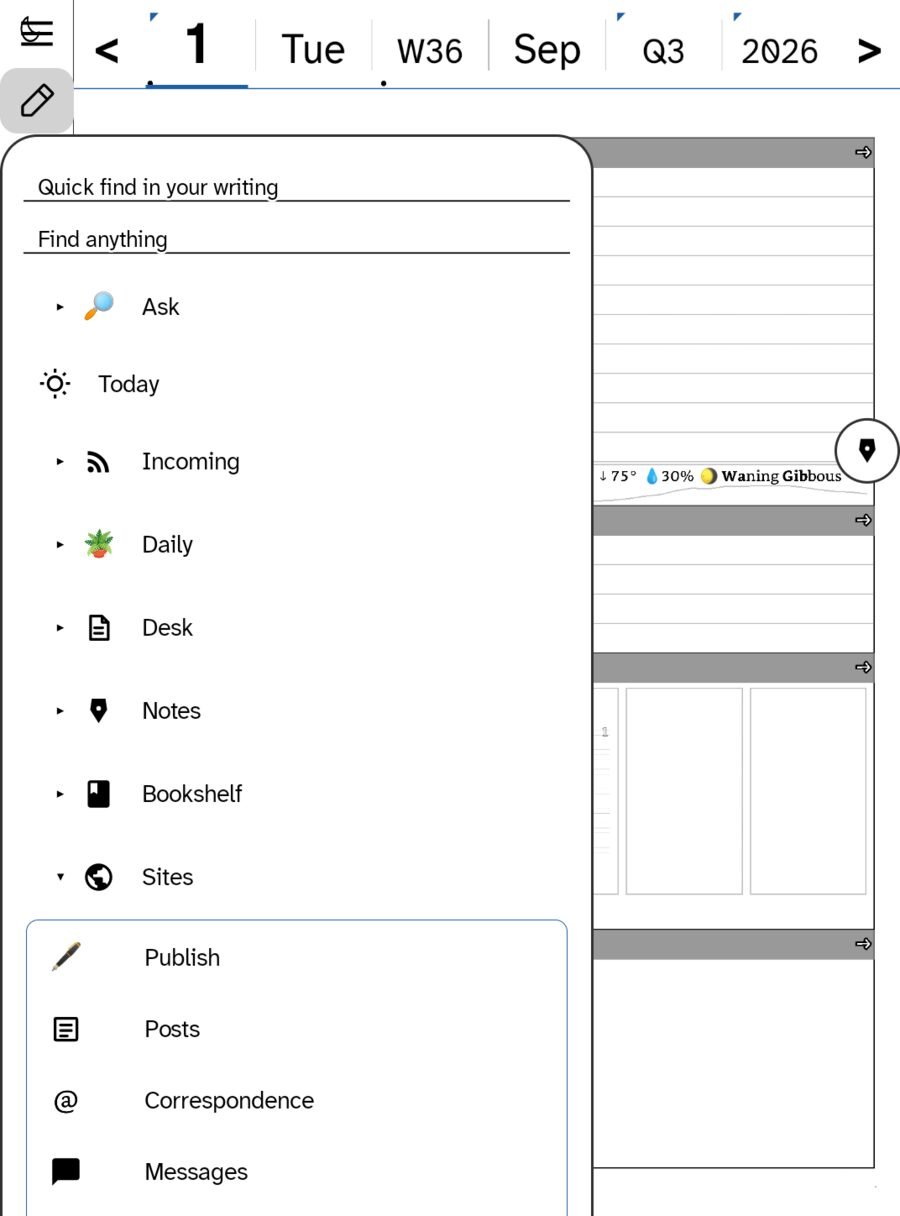
The Sites door
Last in the Hub, and the whole of part two lives behind it.
Publishing a page
The single most important screen in this half of the app, and worth learning field by field.
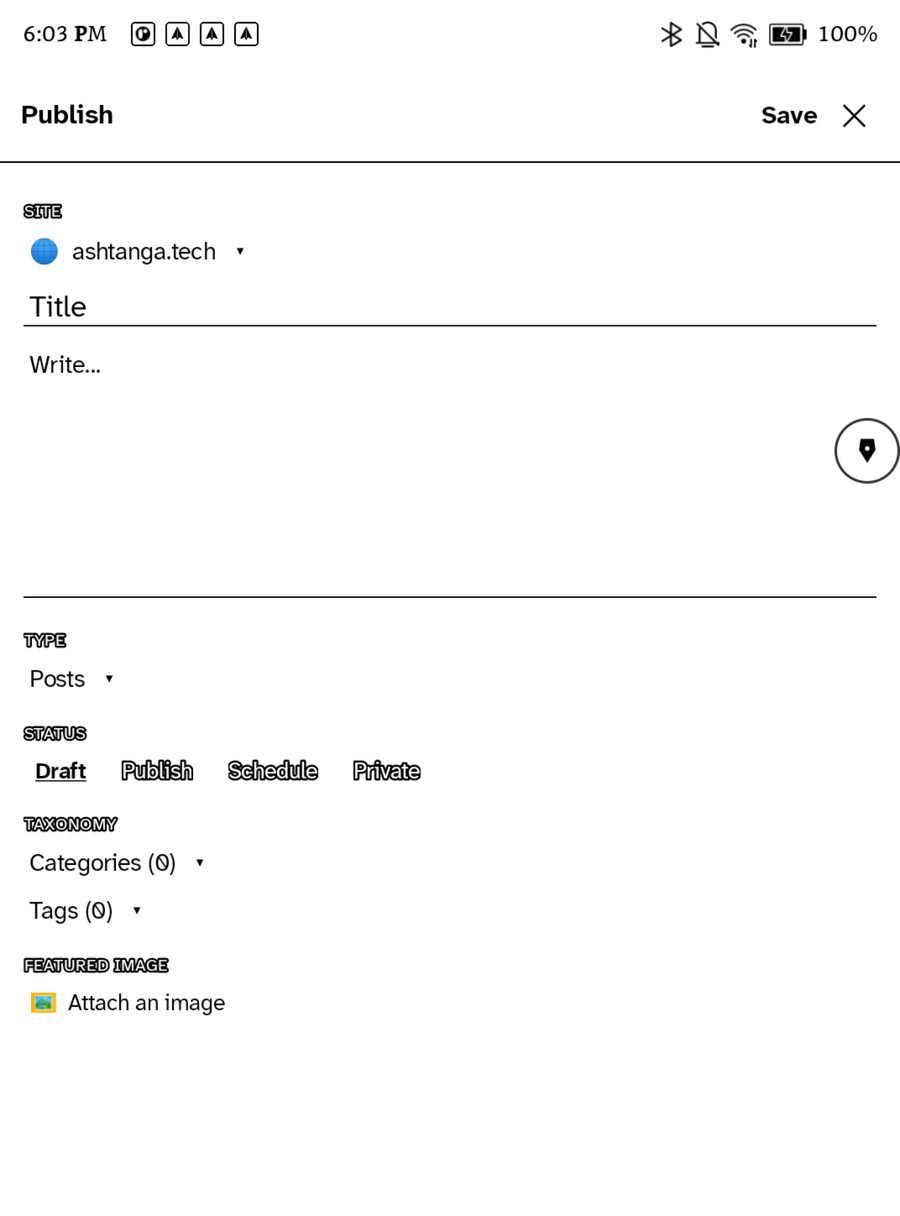
Draft is the honest default
The status row starts on Draft, and that is deliberate. A device you write on while walking is not where you want a one-tap path to the public internet. Composing in the field and publishing at a desk is the intended shape; Schedule exists for when you have decided but do not want it to land yet.
Sending the page you are on
You do not have to come here first. From a page you have written, Publish page as post… hands the whole thing to this composer — transcribed, with the page image attached — so the usual flow is: write by hand, tap publish, check the fields, save as draft.
Posts
Everything you have written to every site, in one list, with what state each thing is in.
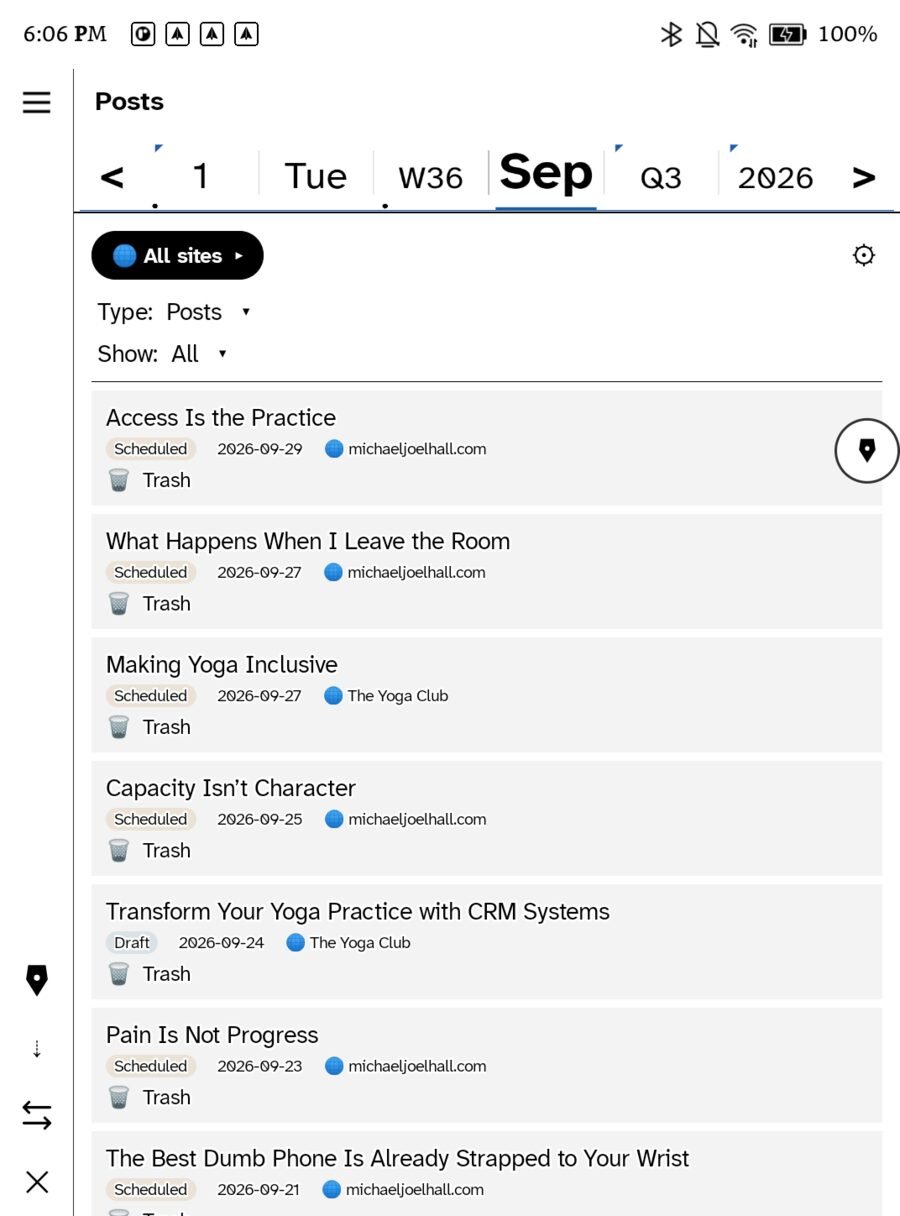
- All sites — the pill at the top. Every connected site at once, or narrow to one. Each row then tells you which site it belongs to, so a shared site and a personal one never blur together.
- Type and Show — filter by content type and by state.
- The almanac strip runs across the top here too, filtering by period exactly as it does everywhere else.
- Each row carries its status badge — Draft, Scheduled, Published — its date, its site, and a Trash action.
- Newest first — tap for oldest sits on the rail, along with Compose.
This is the screen that makes multiple sites practical rather than confusing: one queue, honestly labelled, with the destination written on every row.
The Directory
A different way through everything you have written — by the paper you wrote it on, rather than by the day you wrote it.
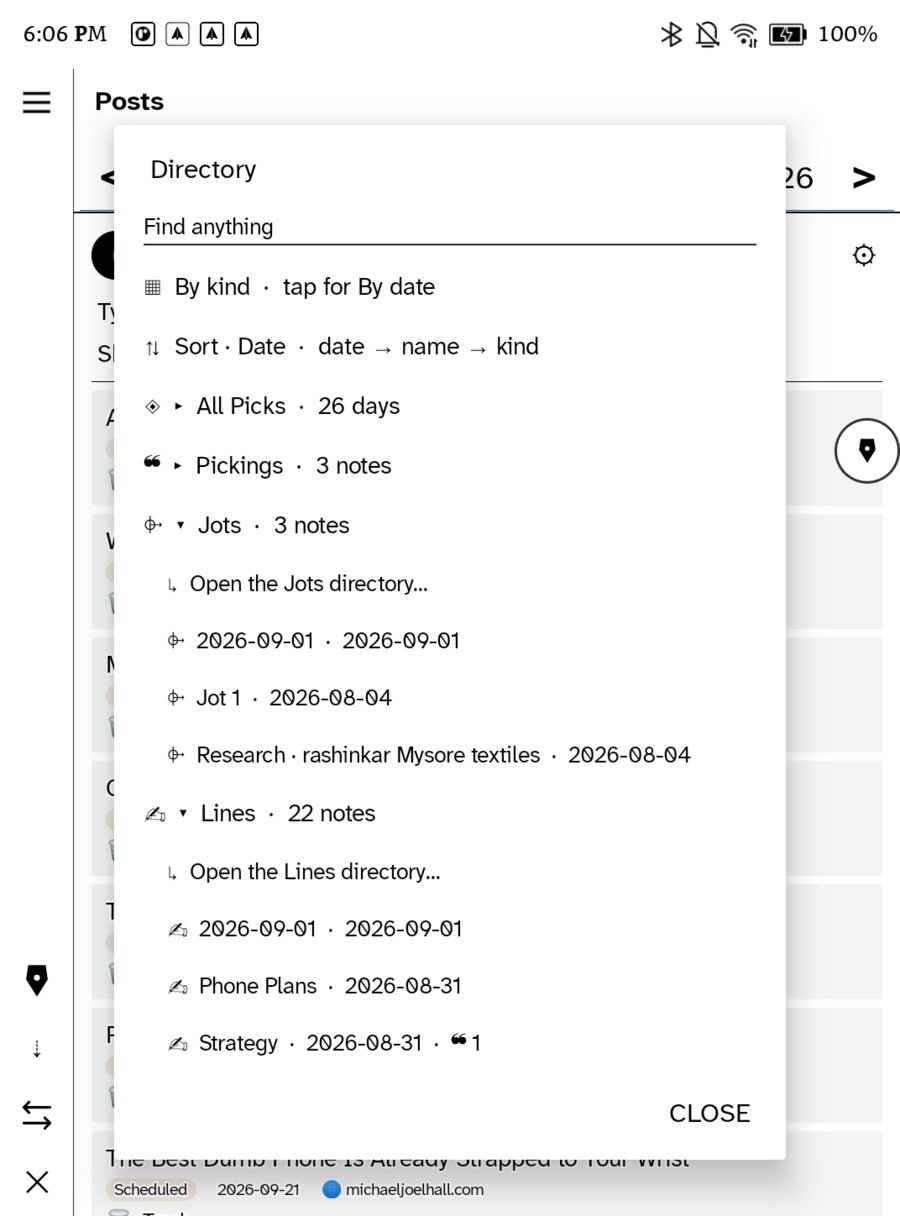
The ledger files by day, which is right for writing and wrong for finding. The Directory is the other axis: your writing grouped by template — the ruling you chose when you started the page.
Each group carries a count and opens to a dated list.
- By kind · tap for By date — flip the whole view between the two organisations.
- Sort · Date — cycles date → name → kind.
- Find anything searches across all of it.
- Each group opens its own directory for the full list.
It is the answer to “I know I wrote a jot about that, some time in August” — a question the day view cannot answer and this one can.
Desk, with a site behind it
The Desk from part one, no longer empty.
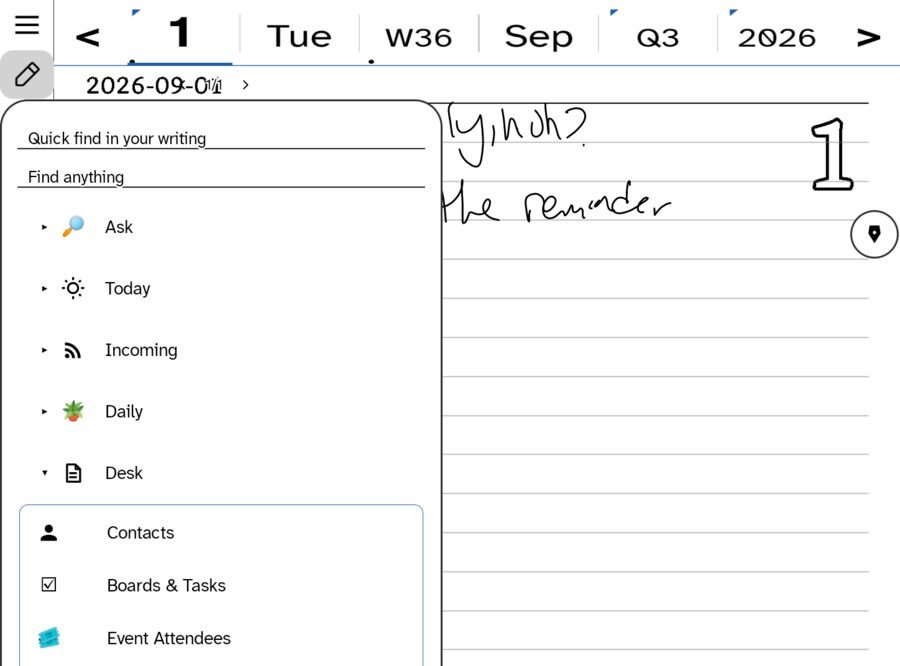
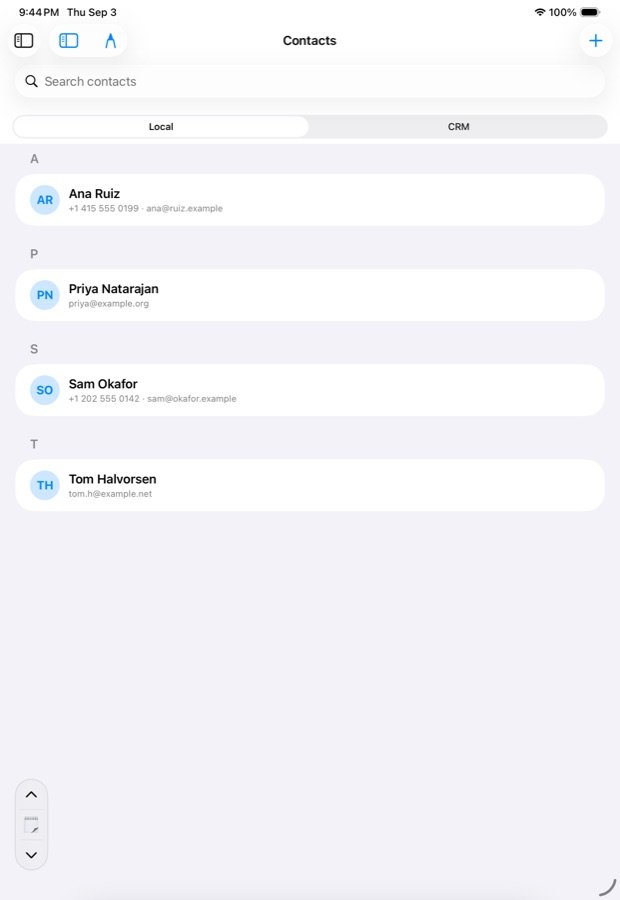
Each of these needs its own plugin on the WordPress side — boards need a boards plugin, attendees need a booking plugin. Where one is missing, the surface says so plainly instead of appearing broken. That is the same rule the whole system follows: a missing piece is a diagnosis, never a mystery.
Correspondence
Letters that belong to the site — and replies that go back out from it.
Correspondence is the site’s own conversations: comments, replies, mentions from other sites, and messages, merged into one stream rather than scattered across screens. It shares the inbox with the mail and feeds from part one, so what arrives is in one place regardless of how it travelled.
- One inbox, several sources. A comment on your post, a reply from a reader, and a mention from somebody else’s ledger arrive side by side.
- Replies are written, not typed. A reply can carry handwriting — the ink is attached, not flattened into text.
- Mentions wait for you. Anything arriving from another site is held for approval before it appears anywhere public.
The correspondence screens are the one part of this guide with no screenshot, for a straightforward reason: on a working device they are full of other people’s letters. The structure is described here; the pictures would have been somebody’s mail.
Whose site
The question underneath all of it, and the one the app deliberately leaves to you.
There is no asymmetry between hosts, because it is the same plugin everywhere. Nobody’s install can do something yours cannot, and moving between them is a settings change rather than a migration. That is what makes the choice real: you can leave, so staying means something.
Setting up the WordPress side — installing the plugin, importing an archive, controlling what stays private — is covered in the Ledgable Handbook, which is the site’s own documentation rather than the app’s.
Ledgable — cozy and transgressive