Ledgable · field guide · part one
Using the app
The page you write on, the doors out of it, and where everything you capture goes. Every screen here is a real one.
The day page
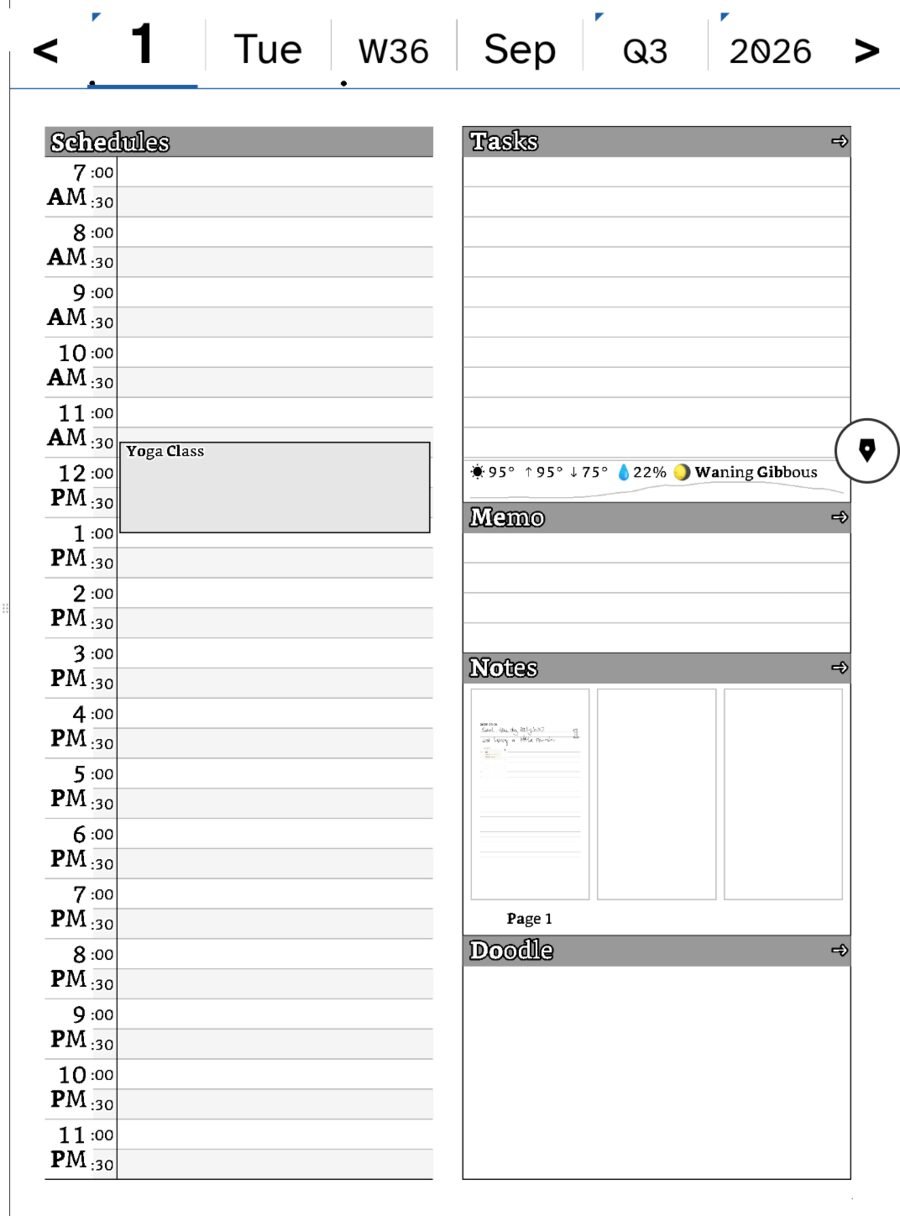
Everything starts here. One page per day, and the day is the unit the whole app is built around — not a folder, not a notebook, a day.
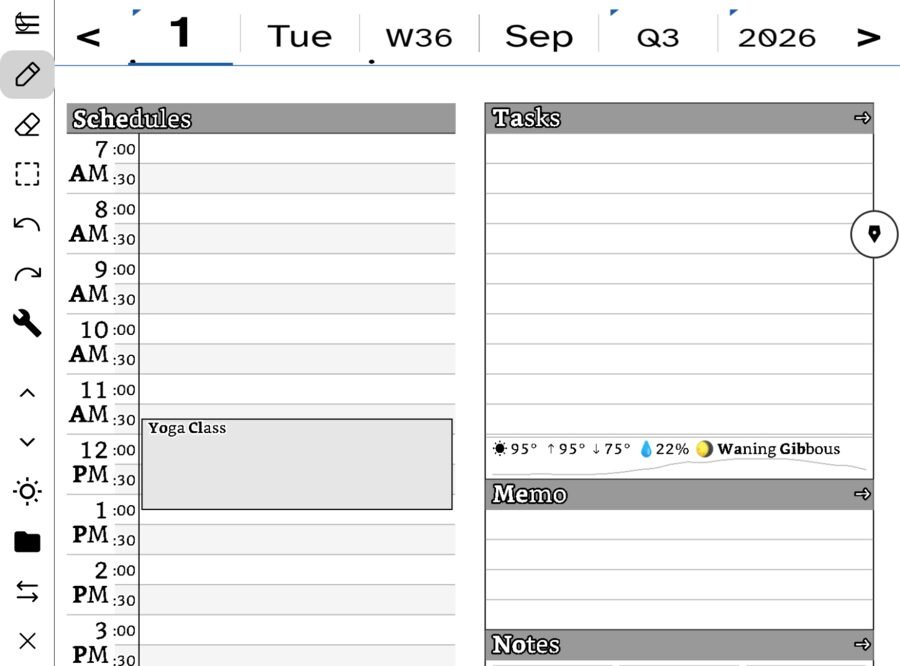
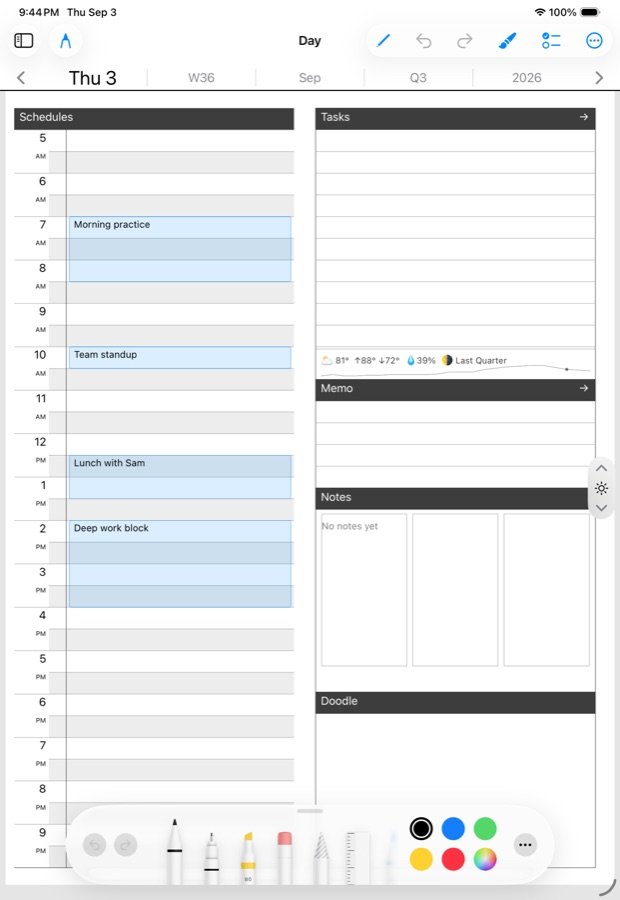
The page divides into zones, and each one behaves differently:
Under the panels sits a strip with the day’s weather and moon phase. It is not decoration — when you look back at a page from two years ago, the weather is often what puts you back in the room.
Every zone accepts handwriting. You are not filling in a form; you are writing on a page that happens to know which day it is.
The Hub
One button, top-left of the rail. The Hub is how you leave the page, and the only navigation you need to learn.
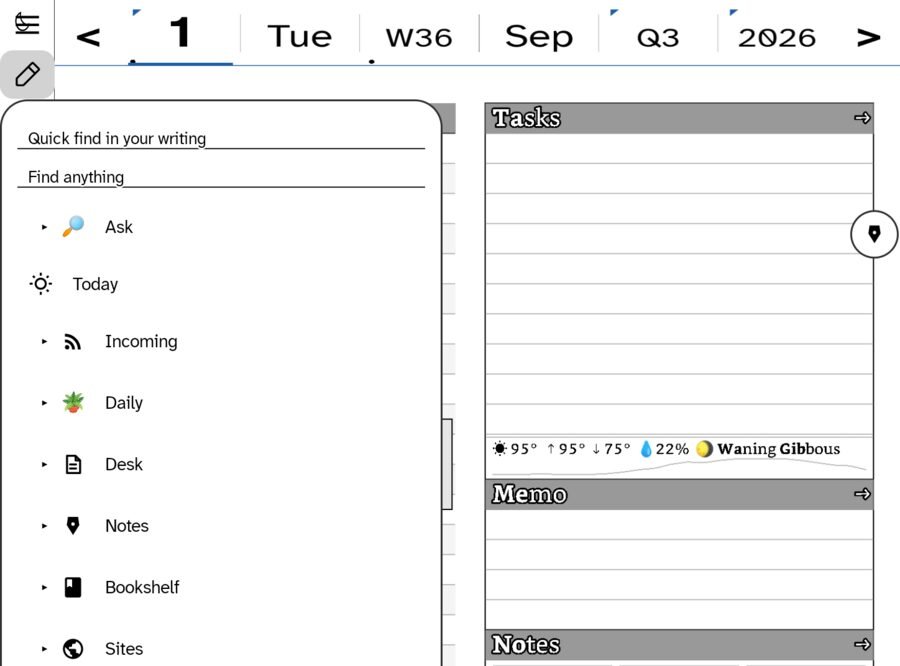
Two searches sit at the top, and the difference between them matters:
Then the eight doors:
| Door | Where it goes |
|---|---|
| 🔎 Ask | Ask a question about what you have written |
| Today | Straight back to today’s page, from anywhere |
| Incoming | What has arrived: feeds, links, things to read |
| 🪴 Daily | The day’s digest — read, watch, listen, books |
| Desk | People, boards, tasks, appointments |
| Notes | Your note pages, outside the day structure |
| Bookshelf | Books and long reading |
| Sites | Your WordPress — covered in part two |
Most doors have a small ▸ beside them. Tap the arrow to expand what is inside without leaving where you are; tap the word to go there.
Writing and the rail
The rail runs down the left edge of every page. It is deliberately narrow and always in the same place, so your hand learns it and your eyes stop needing to.
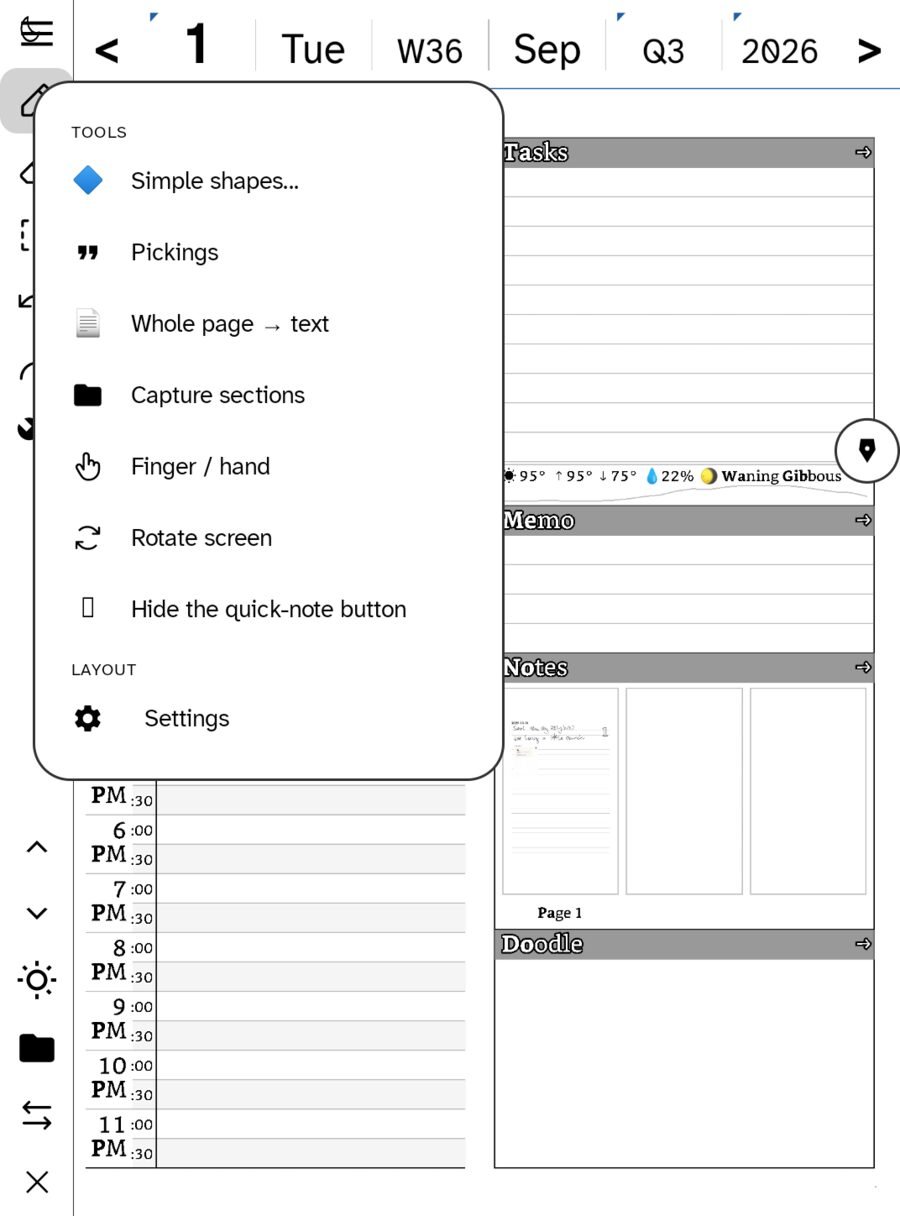
The wrench: Quick tools
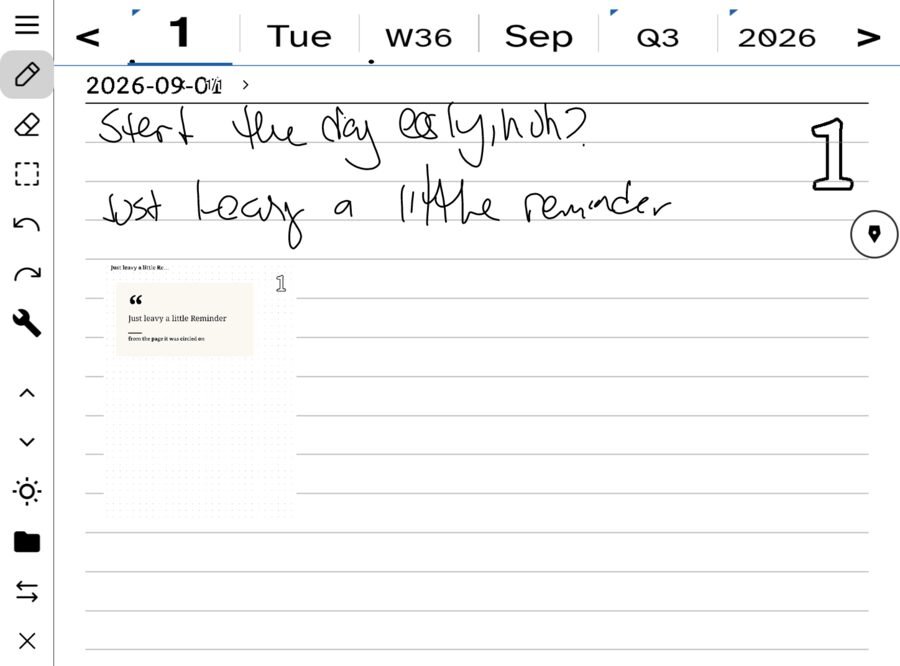
Tuck away
Tuck away collapses the rail to two slivers at the very edge — Actions and Eraser — and gives the page the full width of the screen. It is the writing mode: everything you might tap is gone, and the two things you cannot write without are still within reach of a thumb. Tap either sliver to bring the rail back.
The notes jump
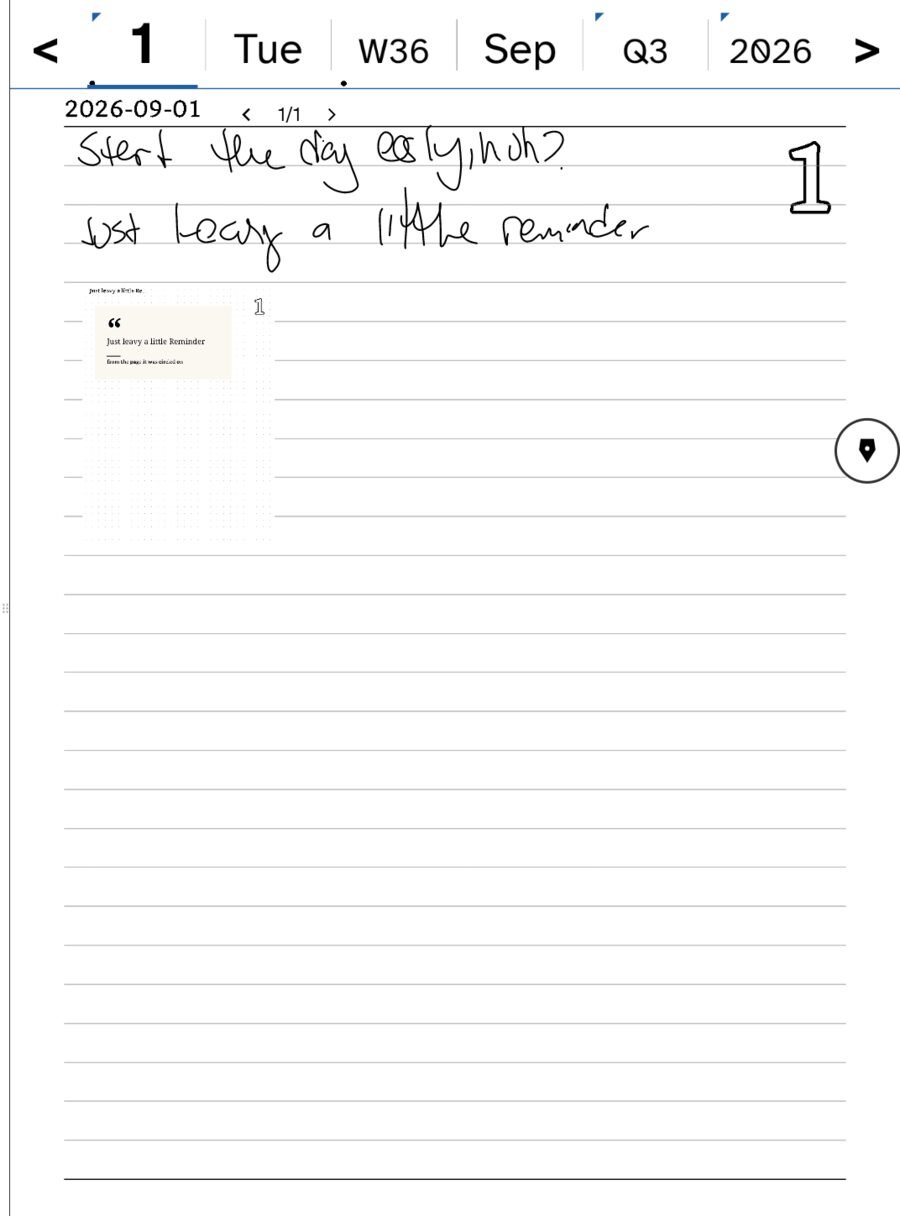
On the right of the day page sits Notes — where you left off. It does what it says: rather than making you find your way back through the Hub, it reopens the note page you were last writing on, with Previous · 1/1 · Next across the top to move through that note’s pages. It is the single most-used shortcut in the app, and it exists because the alternative — remembering where you were — is the thing paper never asks of you.
The almanac strip
The row across the top of every page — ‹ 1 · Tue · W36 · Sep · Q3 · 2026 › — is the almanac, and it is worth understanding as one idea rather than five buttons.
It is a pair: a granularity (day, week, month, quarter, year) and an anchor date. The arrows step you forward and back at whatever granularity you are on. And crucially, it is the same control everywhere — on the day page it chooses what you are looking at, but on mail, feeds, the bookshelf, bookings, tasks and posts it acts as a filter: show me this period.
Each surface decides what a period means for it — bookings fetch a range, tasks widen their window, posts filter what they already hold — but you only ever learn one control. Surfaces that once had their own little date pickers gave them up for this.
The rail is one column wide and the page is everything else. Nothing floats over what you are writing, and nothing animates. That is a deliberate constraint of the e-ink build, and it is why the app feels like paper rather than like software pretending to be paper.
Notes and templates
Not everything belongs to a day. Notes are pages that stand on their own — and which kind of page you get is a template: the ruling printed under your ink.
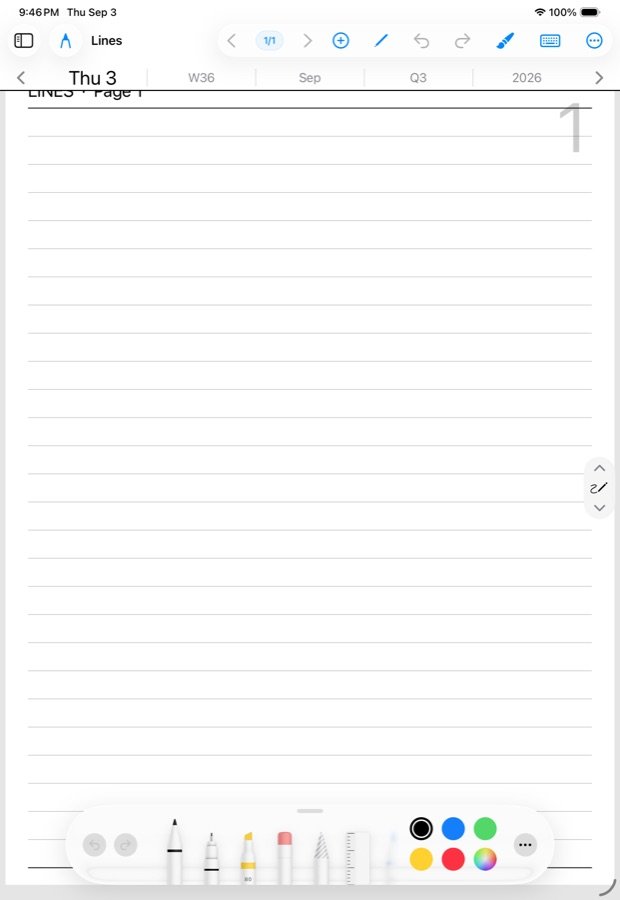
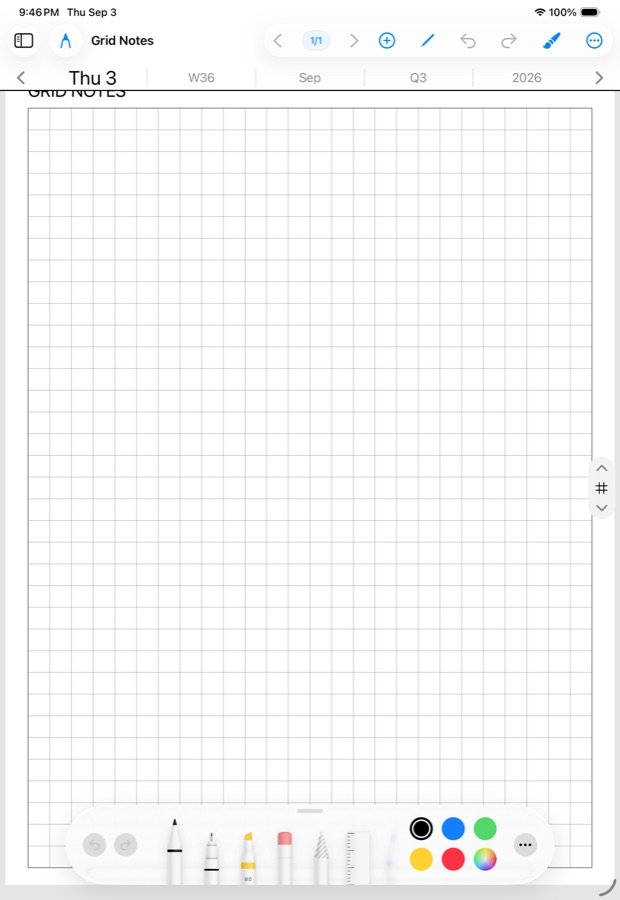
The templates
These are not four different features. They are the same note on different paper:
Because the template is only what is drawn under your writing, it does not change what a note is or where it files. A grid note and a lined note sit in the same ledger, on the same date, found the same way. You are choosing paper, not choosing a folder.
Changing the paper
Use a template… lives in the wrench, so a page that turned out to want graph paper can have it without you starting again. Pickings is in there too — a page seeded with the quote or fragment you pulled out of something you were reading.
A note still carries its date, so it appears in your ledger in the order it happened — but you reach it by name and subject rather than by scrolling back through days. Ink is stored as strokes, which is why it stays sharp at any zoom and why the eraser removes a whole letter rather than chewing a hole in a picture.
Daily
The day’s reading, assembled for you: what to read, what to watch, what to listen to, and what you are part-way through.
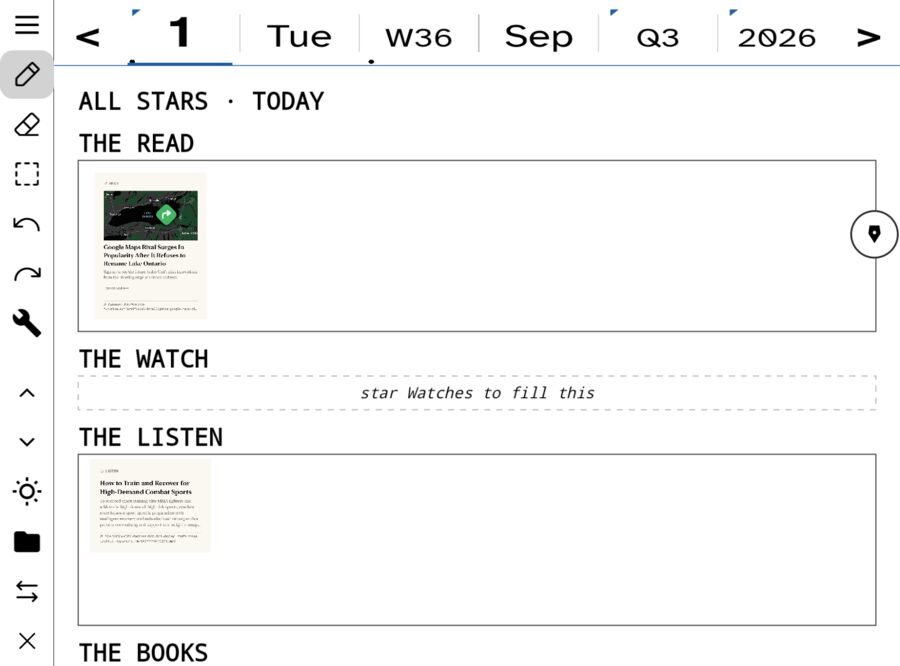
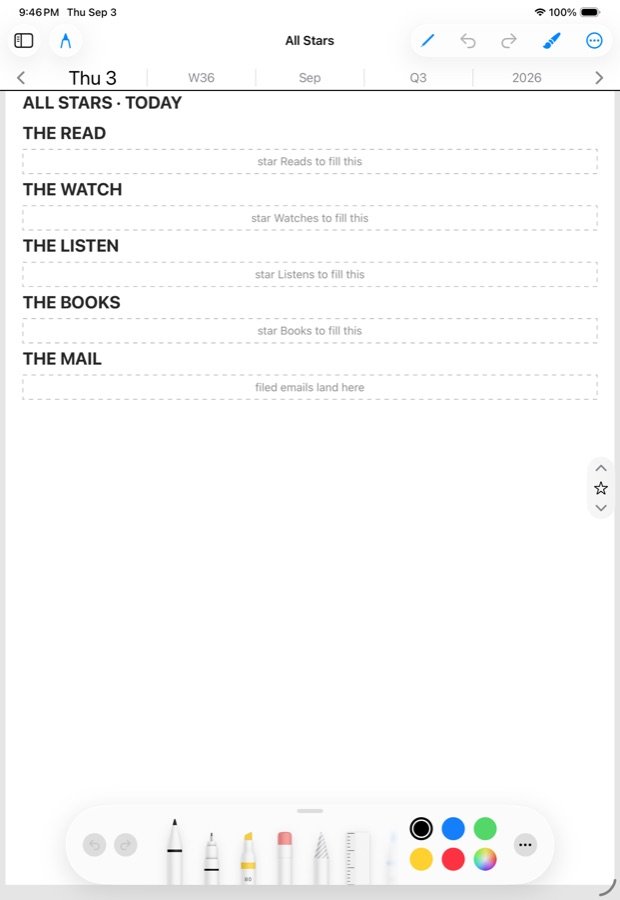
Each section is a short list rather than an endless feed, and it ends. That is the point: you can finish it, close the device, and know you are done. Anything you star here comes back to you later — starred reading is how things get from a feed into your own writing.
Incoming
Everything arriving from outside, in one place: mail, feeds, Bluesky, and the things you set aside to deal with later. This is the biggest door in the Hub and the one worth learning properly.
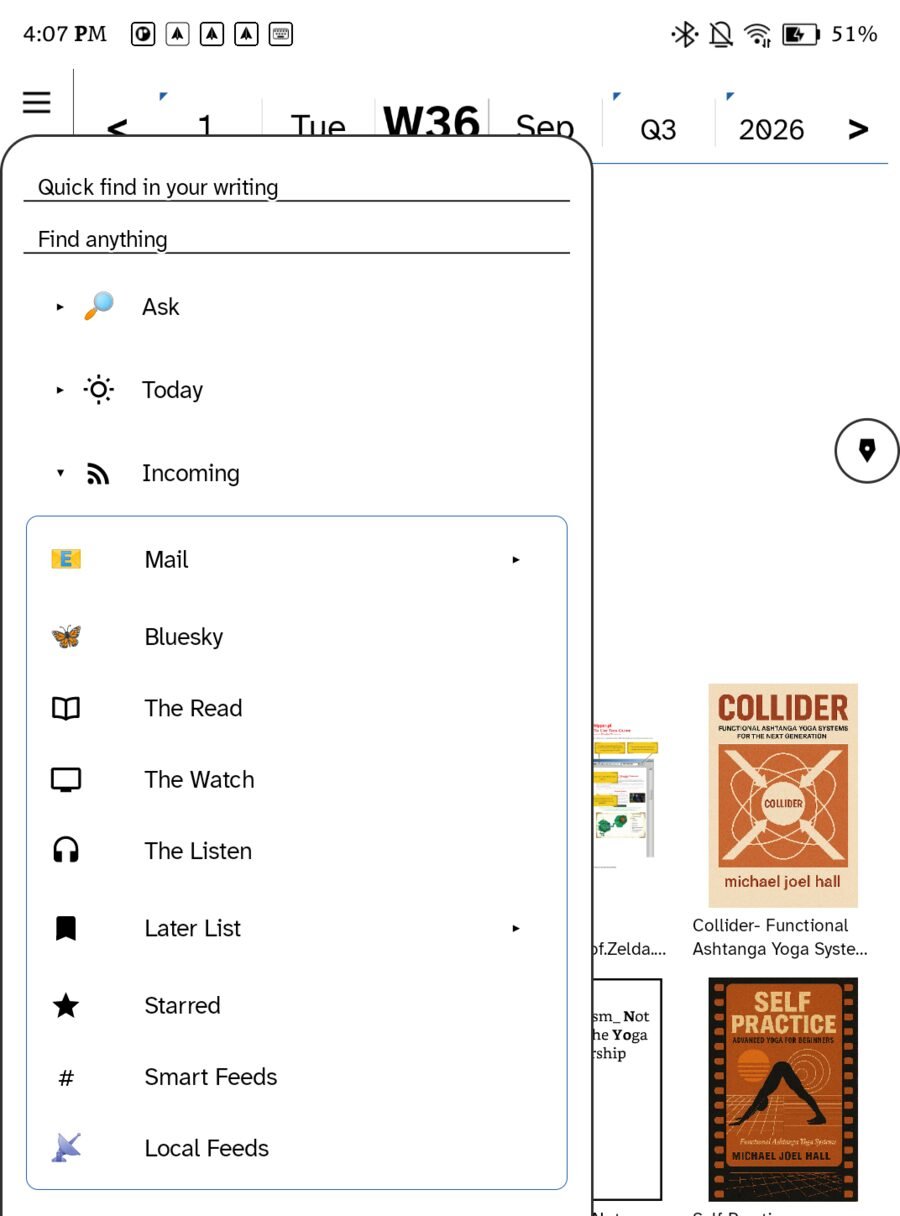
The reading controls
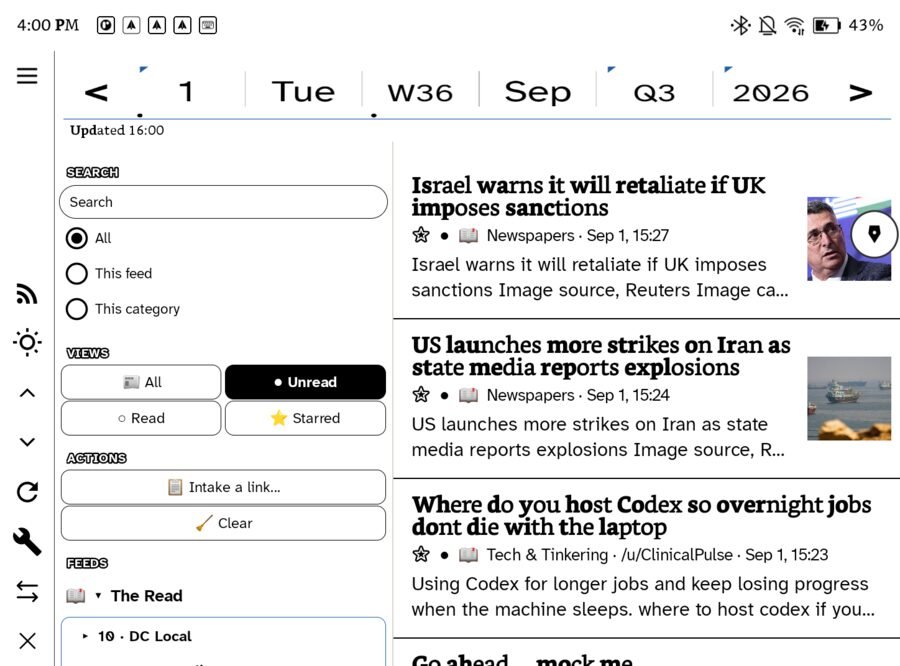
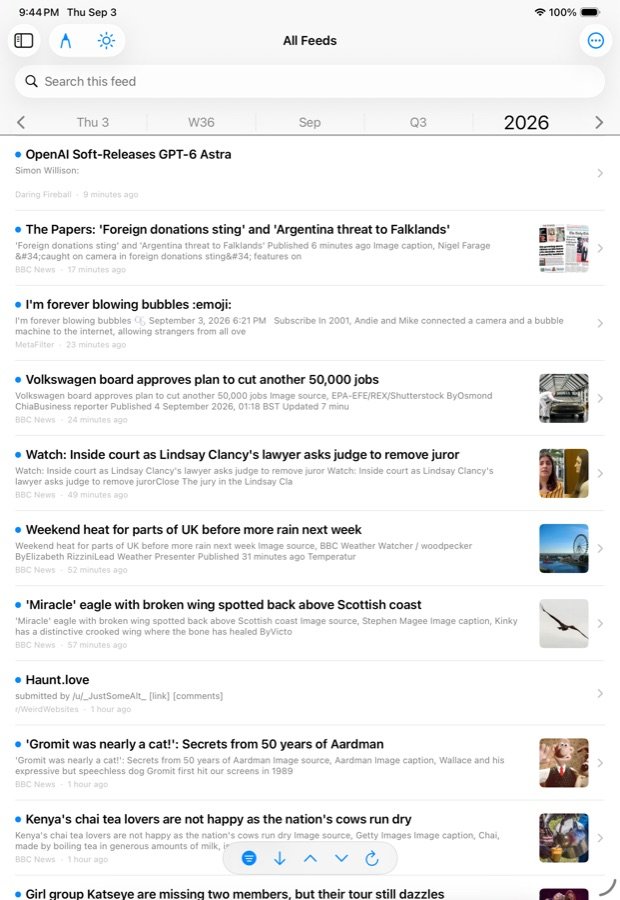
Every incoming surface wears the same three groups, which is why learning one teaches you all of them:
- Search — scoped to everything, this feed, or this category.
- Views — All · Unread · Read · Starred. The four states anything can be in.
- Actions — Intake a link pastes something in from elsewhere; Clear marks the lot read and lets you start clean without guilt.
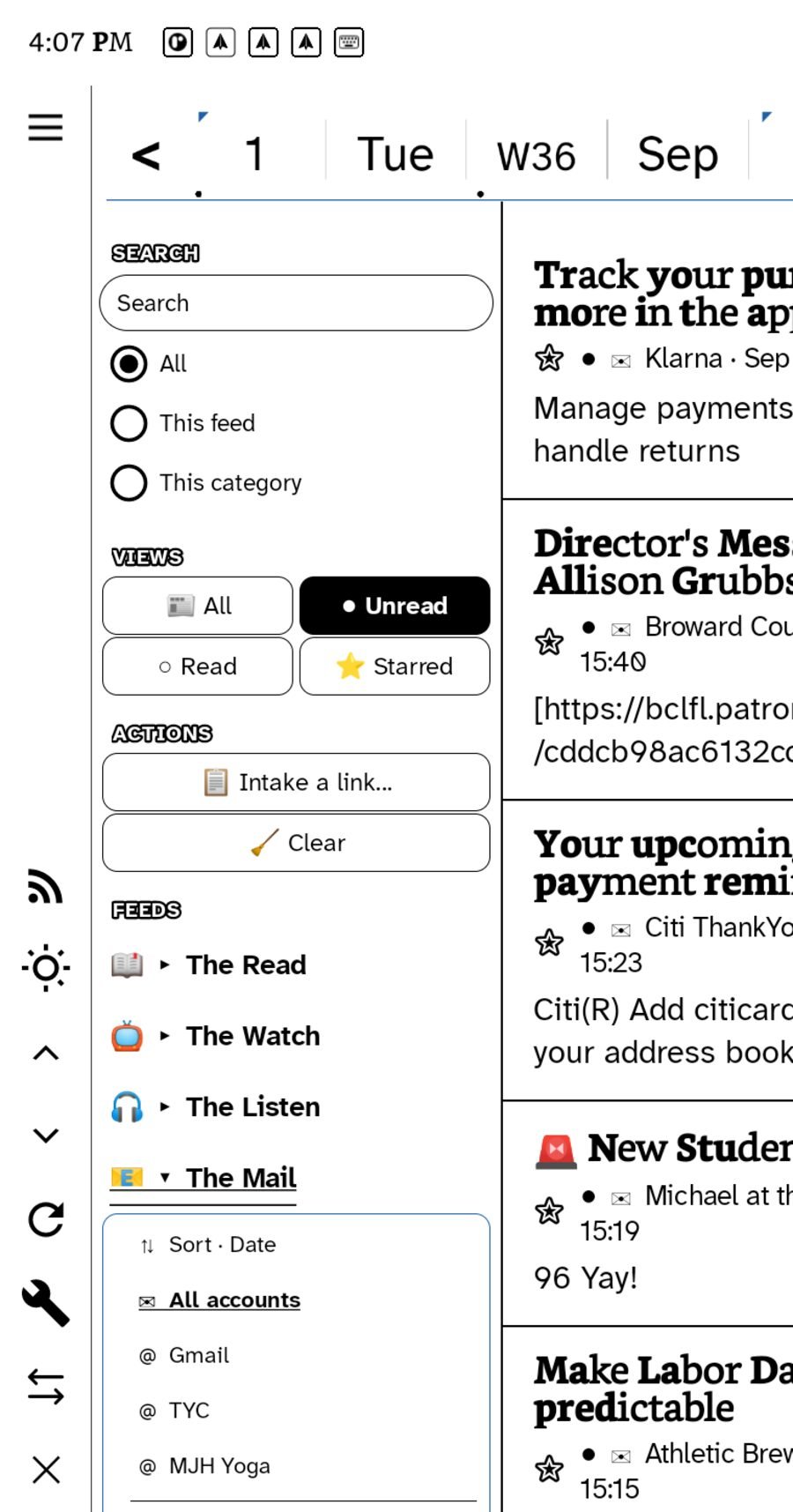
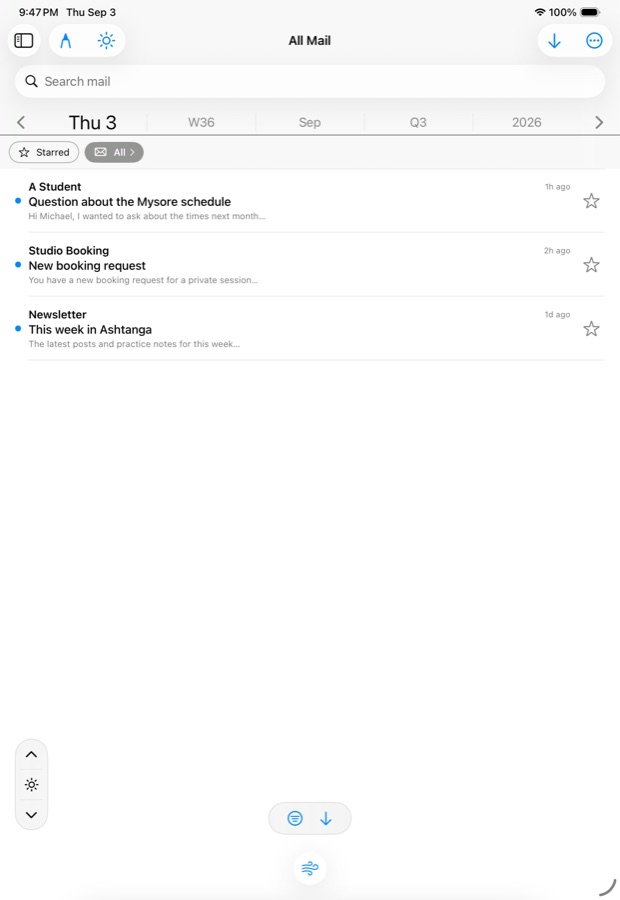
Mail is not a separate application bolted on: it is another source in the same reader. The tree at the bottom of the controls holds The Read · The Watch · The Listen · The Mail, and The Mail expands to All accounts plus each account you have connected. Reading mail therefore uses the same filters, the same starring and the same Later List as an article does.
The rail changes to match the surface: Feeds drawer to show or hide the tree, Page up and Page down for reading by the screenful rather than by scrolling, Refresh to fetch, and Setup for accounts and feed settings.
That screenshot came from a real device with real correspondence in it. The controls are shown; the letters are not. If you are producing your own documentation from a live device, this is the trap to watch — screenshots of a working inbox are screenshots of other people’s mail.
Bookshelf, comics and manga
Books are a first-class surface, not a viewer bolted on. The shelf knows what you are part-way through, what you finished this week, and how you are getting on.
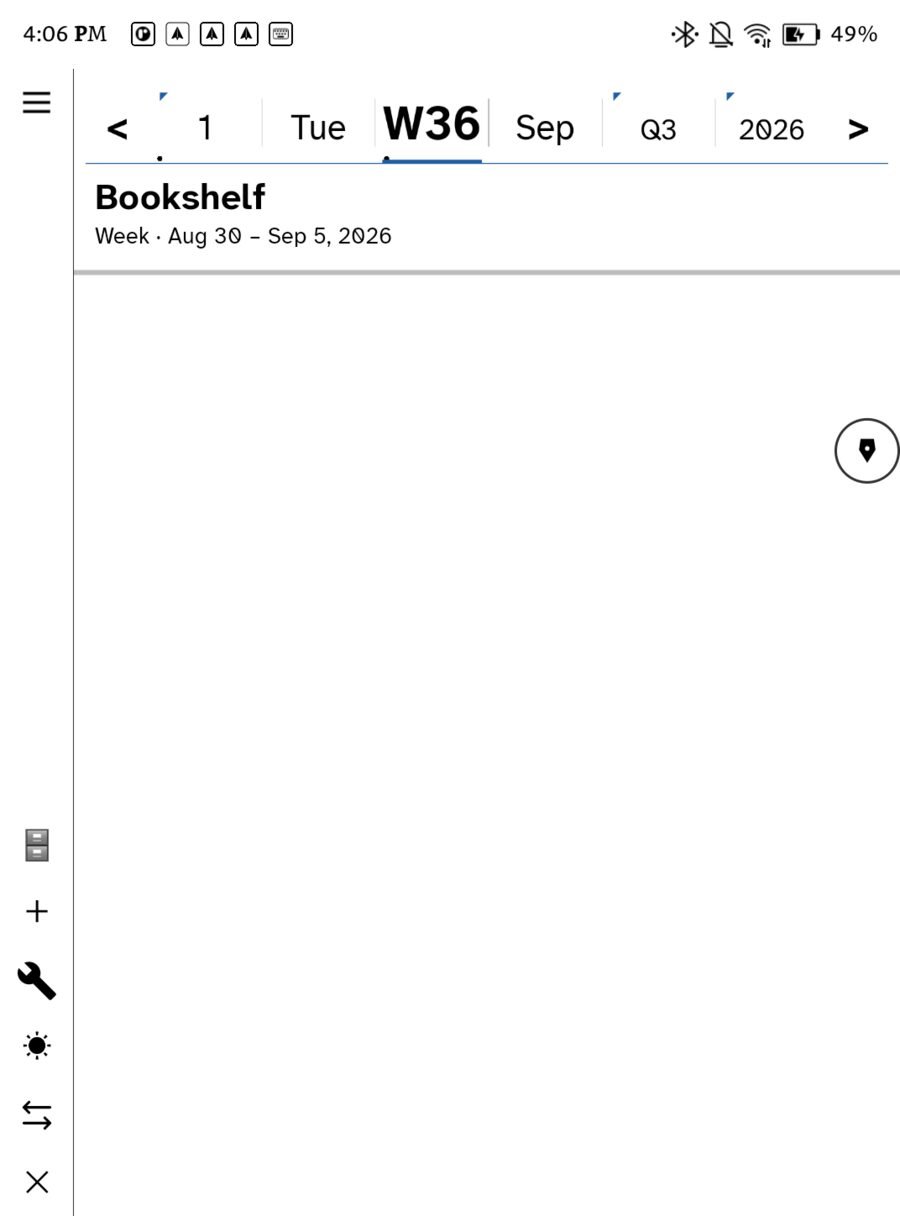
Two bands, and the difference is deliberate:
- Read this period — what you actually read in whatever period the almanac strip is set to. Change the strip and this band changes with it.
- All books — the whole library, deliberately outside the almanac’s reach. You do not want your shelf to empty because you moved to last week.
The book buttons
Where books come from
Three routes, and you can use all three at once:
- Files on the device — EPUB and comic archives you put there yourself.
- An OPDS catalogue — the standard catalogue protocol, which is how the app talks to a self-hosted library server. Point it at your server’s OPDS URL with a username and password, and its whole library becomes browsable from the shelf. Credentials live on the device and are never committed anywhere.
- The library hub — a WebDAV share the app uses to move books and reading positions between your own devices, so a book you started on the iPad opens on the e-ink at the right page.
Comics and manga: the balloon index
Reading comics on a six-inch e-ink screen is the hard case, and the app solves it the way dedicated comic readers do — by finding the speech balloons and letting you move between them, rather than asking you to pinch and pan around a page built for print.
Three things about how it works are worth knowing, because they explain the behaviour you will see:
- It runs when the book opens, not when you turn the page. Detection happens once, in the background, and is cached — so page turns stay instant, which on e-ink is the whole game.
- It indexes balloons, not panels. Panel detection’s failure mode is a wrong crop, which is worse than no crop at all; balloon detection’s failure mode is a missed balloon, which is survivable. The panel class is deliberately ignored.
- A page that fails to index does not break the book. Failures are isolated per page and the tally is honest, so one bad scan costs you that page’s balloon jumps and nothing else.
The comic reader and the shelf controls are the two screens missing from this guide — the device locked before I could reach them. Everything described above comes from the shipping implementation rather than a plan, but I would rather say so than show you a picture of something else.
Moving through time
Across the top of every page: day, week, month, quarter, year. The same ledger at five distances.
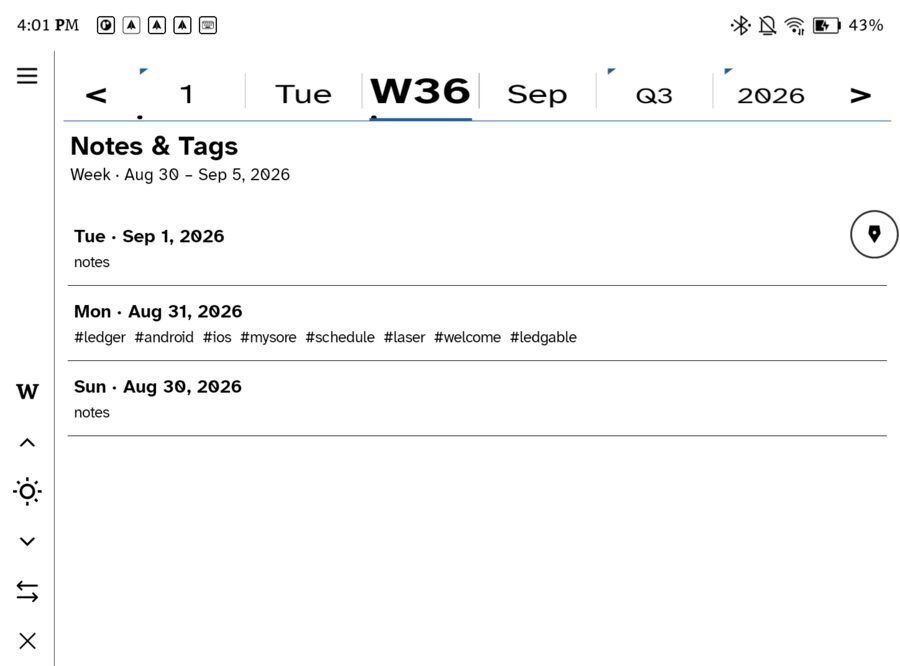
Tap a level to zoom out; the arrows either side move you back and forward at whatever level you are on. Zooming out is not just a smaller calendar — the week shows what you actually wrote, gathered by day, with the tags that connect them. It is a reading view, not a planning grid.
The Today button on the rail always brings you home, at any level.
The Desk
The people-and-commitments side: who you are seeing, what you owe, what is booked.
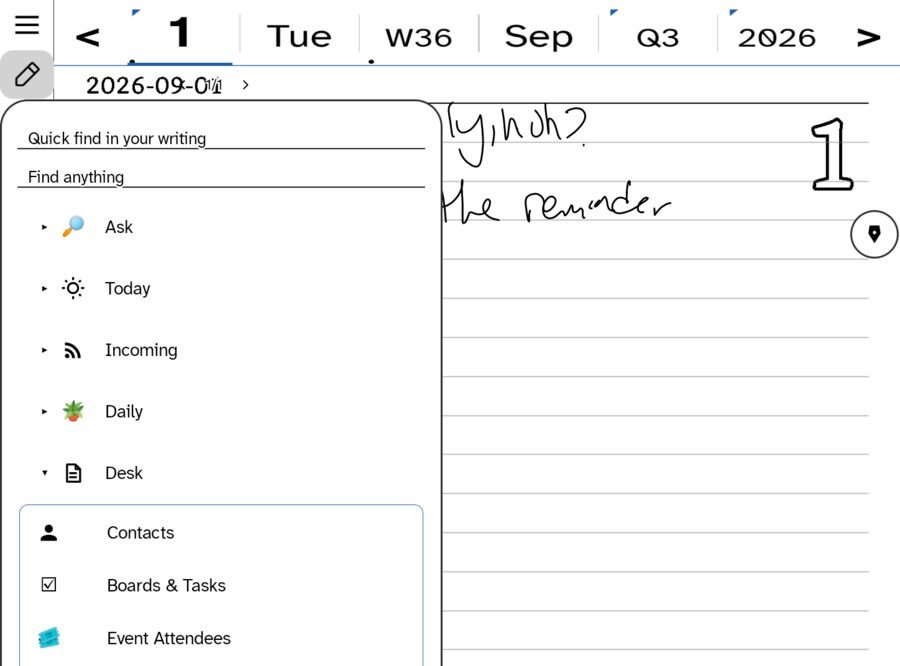
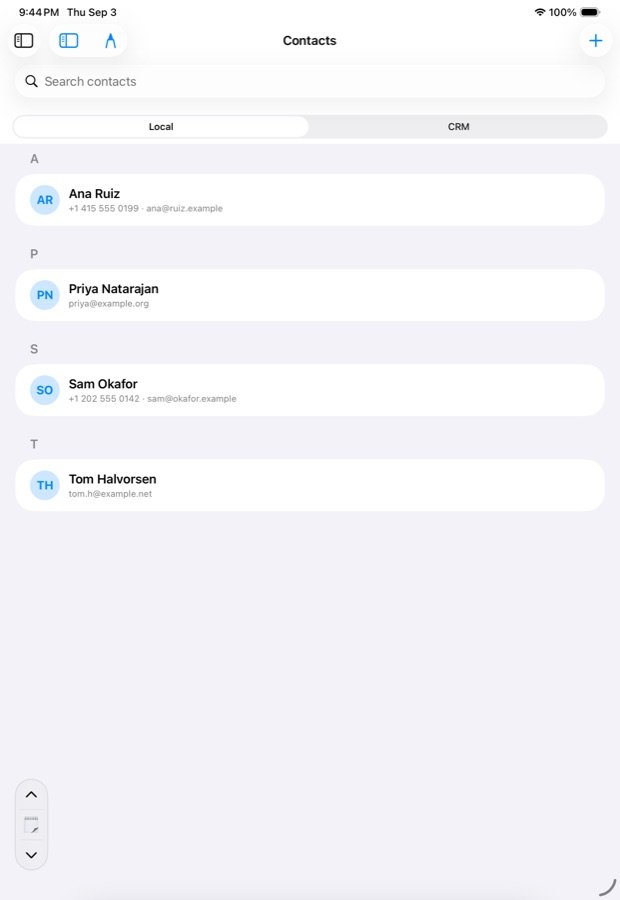
Contacts, boards and attendees are the surfaces that read from your WordPress. Without a site connected they will be empty rather than broken — and connecting one is the first thing part two covers.
On iPad
The same ledger, with a colour screen and an Apple Pencil. Everything above still applies; three things differ.
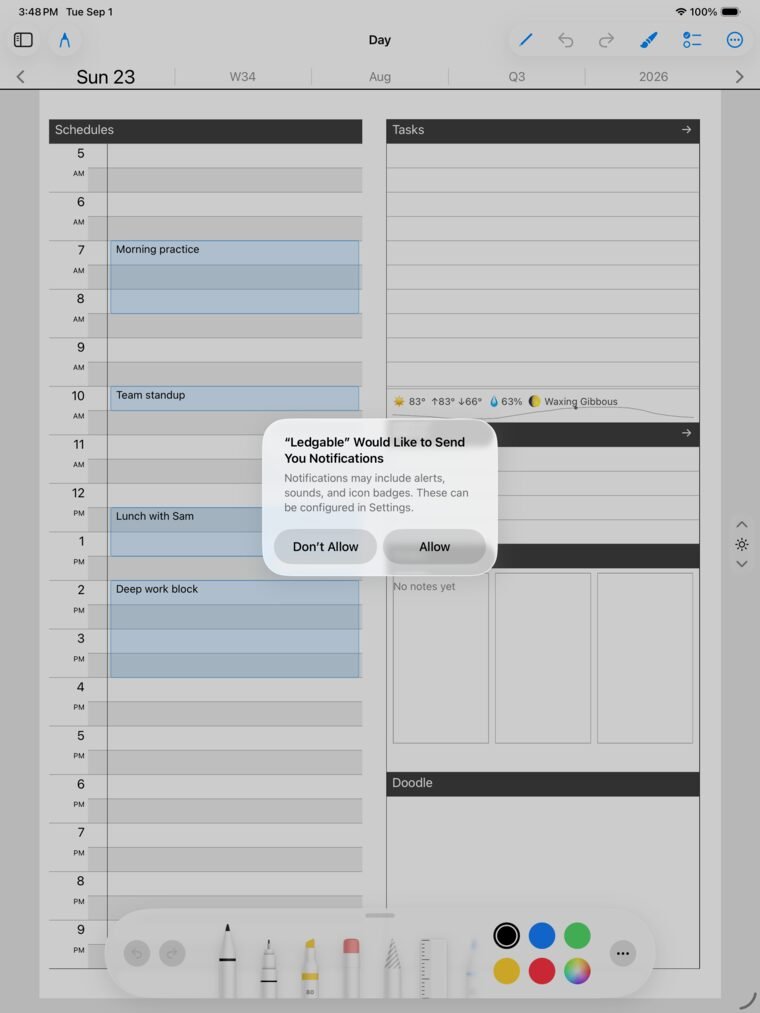
- The tool palette is Apple’s. Pens, highlighter, ruler and the colour wells sit along the bottom instead of on a rail, and pressure and tilt work as they do everywhere else on iPad.
- There is a Doodle panel. A drawing zone on the day page, which the e-ink build folds into Notes.
- The sidebar replaces the Hub. Same doors, opened from the top-left rather than from a rail.
Pages you write on one device appear on the other, because both are writing to the same ledger rather than syncing to each other.
Widgets
Your page on the home screen, without opening anything. On e-ink this matters more than it sounds: the screen is showing something whether the device is in use or not, so it may as well be today.
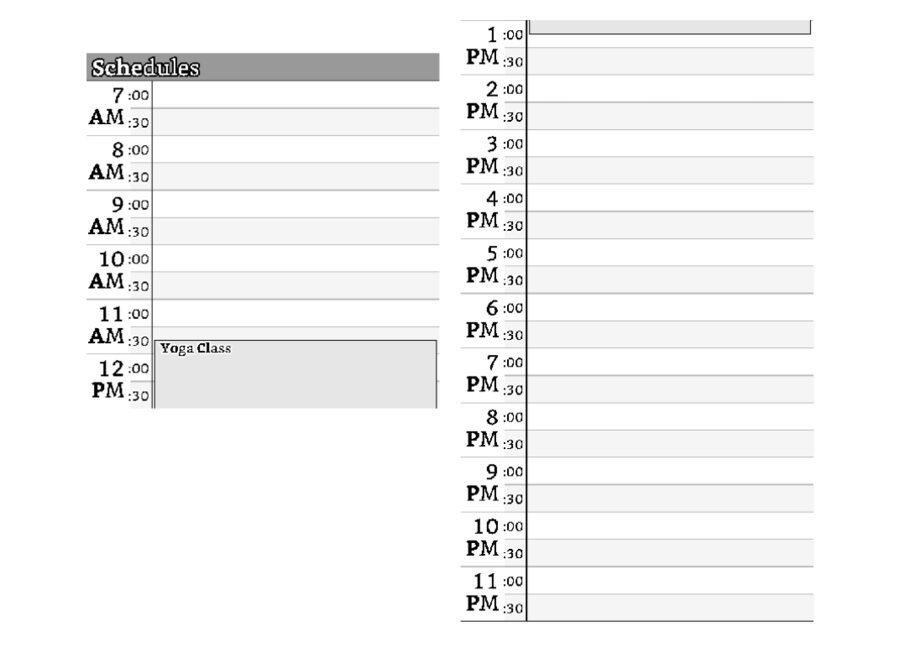
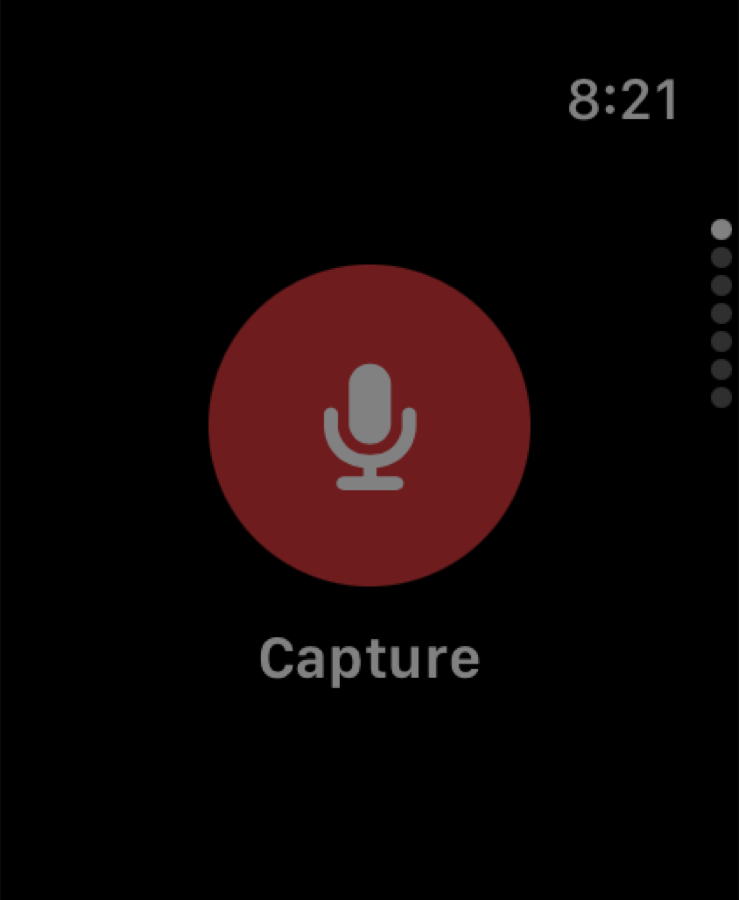
The three home-screen widgets
All three are resizable in both directions, so you can give one the whole home screen or run two side by side. They refresh every half hour, which is the right cadence for e-ink: often enough to be true, rarely enough not to spend battery ghosting the screen all day.
The detail worth pausing on is that the full-page widget draws your actual ink, not a summary of it. A device sitting on a desk showing this morning’s handwriting is a different object from one showing an app icon — it is closer to leaving your notebook open at today’s page, which is what it is replacing.
On iPhone, iPad and Watch
The same idea ships as a WidgetKit extension in the small, medium and large sizes, so today’s page can sit on a Home Screen, in Today View, or on a Lock Screen alongside everything else.
They install with the app and appear in your device’s own widget picker under the Ledger name — long-press the home screen on the Boox, or on iOS use the standard Add Widget flow. Nothing to configure: the widget shows today, and today changes on its own.
Where your things live
Every layer of Ledgable asks the same question and gives you the same answer: bring your own, or use one that is offered — and either way, leave whenever you like with everything you made.
This is not a philosophy section. It is four concrete settings, and it is worth reading before you have a year of writing in the app rather than after.
Notes sync: WebDAV or Google Drive
Your days are stored as plain JSON files in a dated folder tree, on the device:
calendar/2026/05/day-2026-05-28-v2.json
Sync mirrors that tree, unchanged, onto whichever back-end you choose. A file’s local path is its remote path — there is no repackaging, no proprietary container, no database only the app can open. Point it at either:
The e-ink and iPad apps write the same layout, so the two clients interoperate one-to-one. A day written on the Go 6 opens on the iPad because they are reading the same file, not because a server translated between them.
What happens when two devices edit the same day
The honest answer to this question is where a sync system earns trust, so here it is in full.
Both back-ends share one merger. Not two implementations that mostly agree — the same code, so a day edited in two places converges to the same result no matter which transport ran. It is a conflict-free merge, not last-write-wins:
- Ink, text and images union by stable id, with erase tombstones honoured — a stroke you erased on one device stays erased on the other, rather than coming back.
- Reading events, A/V grams and tasks union by id.
- Tracker values take the newer side, per key — not the newer file, the newer value.
- The result is deterministic: both sides re-store a byte-identical file and stop, instead of ping-ponging edits at each other forever.
Which means the failure mode people fear — writing on the tablet in the morning, on the e-ink in the evening, and losing one of them — does not happen. Both sets of strokes survive.
A union cannot tell “this device never had that stroke” from “this device erased it and recorded no tombstone”. So an erase made in a way that left no tombstone can, rarely, resurrect. That trade is deliberate: for a ledger you mostly add to, a stroke reappearing is a far smaller harm than last-write-wins quietly discarding an entire page.
Backup: your disk, a cloud, or both
Because your writing is files in a dated tree rather than rows in an app’s private database, anything that backs up files backs up your ledger. There is no export step, and no format to convert out of later.
- Sync is a live backup. Point sync at your own WebDAV and the tree is already mirrored to hardware you control, continuously.
- Belt and braces. Nothing stops you running WebDAV to your own box and Drive as well — same files, two places, and the merger keeps them agreeing.
- Restorable without the app. The remote tree is browsable by hand. You can read a day out of it with a text editor, and a restore is a file copy rather than an import wizard.
- Media follows too — the library hub moves books and reading positions between your devices over WebDAV, on the same principle.
The test to apply to any tool that holds years of your life: if this company vanished tonight, what would I still have in the morning? Here the answer is a folder of dated JSON files and your media, on your own disk, which is the honest best case.
WordPress: run your own, or join someone else’s
The app writes to a website. Whose website is entirely your choice, and it is a setting rather than a fork:
- Run your own. Install the Ledgable plugin on your own WordPress and the app writes there. You hold the domain, the database and the backups.
- Join someone else’s. A studio, a group, a family or a friend can run one and give you an account on it. Same app, same features.
- Or several at once. The app holds multiple sites, so a personal ledger and a shared one can live side by side, and you choose per action where something goes.
There is no asymmetry between hosts. Nobody’s install has capabilities yours lacks, because it is the same plugin — which is what makes leaving a decision rather than a migration.
Feeds: hosted, self-hosted, or none at all
Reading works the same way. Three options, and they mix:
You can run all three at once: a hosted account for the feeds you read everywhere, and Local Feeds for the handful you would rather nobody’s server had a record of.
Notes, backup, website, feeds — four layers, one shape. Somebody else can host it, or you can, and the files underneath are the same either way. Convenience and ownership are usually sold as a trade; here the only difference is which address you typed into a settings field.
What’s next
Part two covers the half of the app that talks to your website.
- Connecting a site — pairing the app to your own WordPress.
- Publishing — a page you wrote becoming a post.
- Desk, fully — contacts, boards, bookings and support once a site is behind them.
- Correspondence — mail and replies, in the same inbox.
- The Garden — how what you wrote finds what else you wrote.
Every image here is a real screen from a running build, not a mockup — captured from a Boox Go 6 and an iPad simulator, with example content rather than anyone’s private ledger.
Ledgable — cozy and transgressive