Ledgable for WordPress · version 1.0.0
Handbook
Everything a new install needs: setting up your field ledger, importing an archive, deciding what stays private, joining the open network, connecting a device, and fixing what commonly breaks.
What it does
Two things, and it is worth knowing which one you came for — they work independently.
A field ledger
A private post type for dated entries, and a set of pages that make them browsable: a landing page, one page per day, a timeline, an on-this-day view, threads that gather entries by subject, and search. Entries can come from an import, from a device, or from you.
Somewhere for a device to write
A REST surface a handwriting app can authenticate against and post to — day pages, ink, cards, correspondence. If you have no such device, you can ignore this half entirely and nothing about the ledger changes.
Everything else in the plugin is an integration: a module that appears when the plugin it needs is installed, and stays out of the way when it is not. A site with none of them still gets both of the above.
Before you install
The setup wizard tells you this too, on its second screen. It is repeated here so you can read it before you commit.
What Ledgable adds to your site
- One post type,
ledgable_entry, and three taxonomies — source, thread, and surface. Your existing posts and pages are not touched. - Six database tables prefixed
ledgable_, and two options. - A REST namespace so a device can write to your site. Every route requires a capability; none is public.
- Files only inside your uploads folder. Nothing is written anywhere else.
What it does not do
No analytics, no phone-home, no outbound request of any kind — with exactly one exception, which you have to turn on yourself: if you install an AI plugin and enable a tagging task, that plugin makes model calls on your account. Nothing else leaves the server.
Imported entries are private by default. Nothing from your archive becomes publicly visible because you installed a plugin — you change that deliberately, once you have looked at what came in.
Setting up
Four steps, about ten minutes, ending in a check that actually calls the plugin’s own API rather than showing you a green tick.
-
Install and activate
Upload the plugin zip at Plugins → Add New → Upload Plugin, then activate. A new Ledgable menu appears in the sidebar and the setup wizard opens.
-
Say what you came for
The wizard asks whether you have an archive to bring in, a device to connect, or both, and enables the matching modules. You can change any of it later under Ledgable → Integrations.
-
Name your ledger
Pick the URL your ledger lives at —
/ledger/by default — and whether entries are private or public. Changing the slug later is fine; the plugin rebuilds its URLs and you re-save permalinks. -
Run the check
The last step calls the plugin’s own
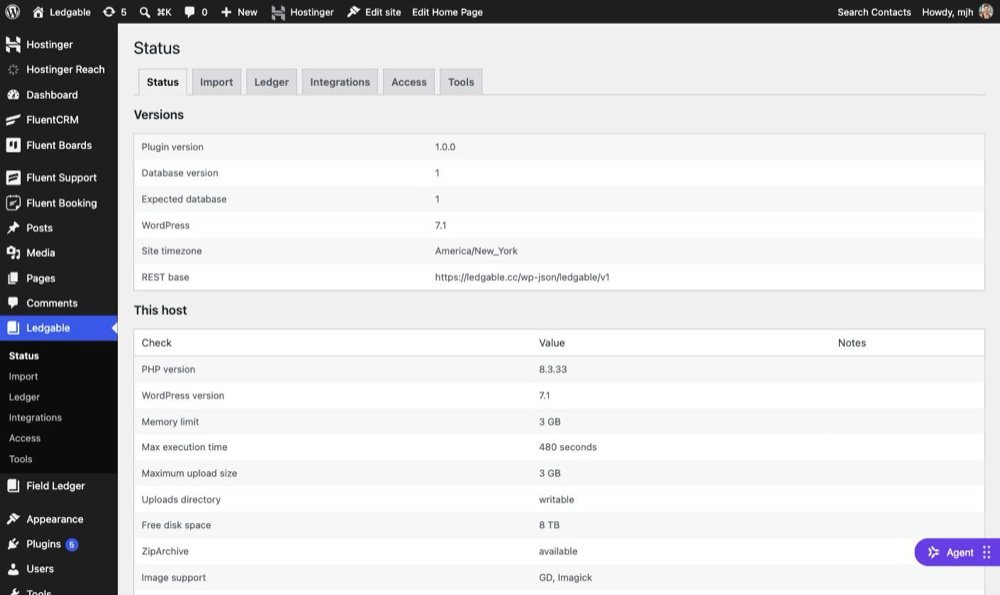
/discoveryendpoint and shows you what came back: which modules are live, which are dark and why, and whether anything in the environment will get in your way. If this step is happy, the plugin works.
Go to Settings → Permalinks and click Save. WordPress caches its URL rules, and that page is how you make it re-read them. This is the single most common thing to hit right after install.
Your field ledger
Once anything is in it — an import, a device write, or an entry you made by hand — these URLs exist.
| URL | What you get |
|---|---|
/ledger/ |
The landing page: today, on this day, recent entries, and the browsable feed |
/ledger/2026-08-28/ |
One day, with navigation to the previous and next day that has something in it |
/ledger/timeline/ |
Everything, newest first, with filters |
/ledger/on-this-day/ |
This date in previous years |
/ledger/thread/<name>/ |
Every entry on one subject, oldest first |
/ledger/source/<name>/ |
Everything that came from one source |
/ledger/search/ |
Search across your entries |
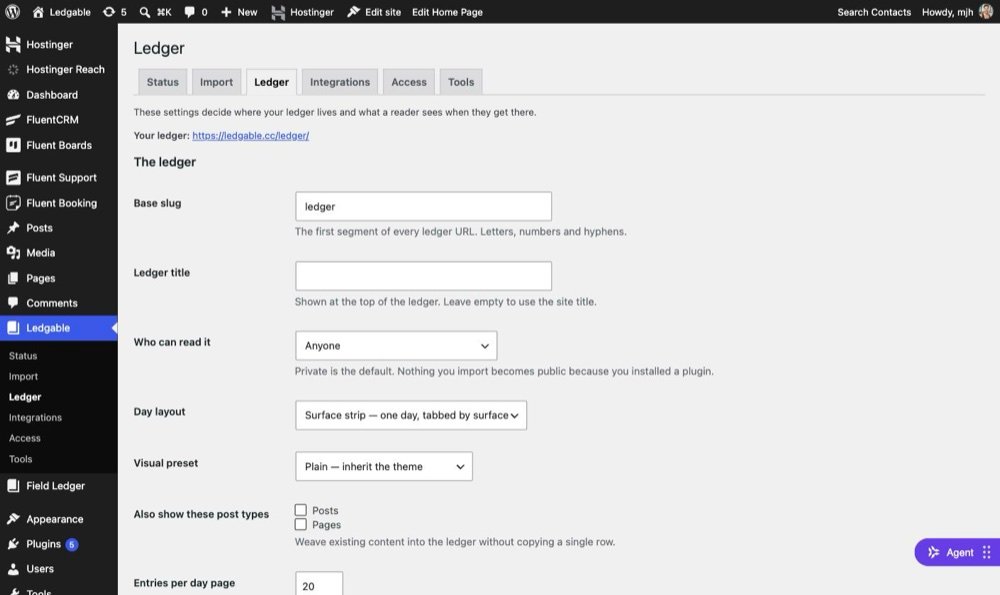
ledger is a setting, not a fixed word. Set it to journal, archive, or anything else under Ledgable → Ledger.
Putting the ledger on a page you control
If you would rather compose the page yourself, the shortcode renders any of the views inside your own layout:
[ledgable]                              the landing view
[ledgable view="timeline"]
[ledgable view="on-this-day"]
[ledgable view="day" day="2026-08-28"]
How it looks
The ledger renders inside your theme — your header, your footer, your fonts. It brings a small stylesheet of its own with two presets (a plain one and a paper one) and takes its colours from tokens you can override. Templates are overridable the usual WordPress way: copy one into your theme and it wins.
Importing an archive
This is the part that gives you a ledger worth browsing on day one. Point it at your Facebook or Instagram export and it builds day pages out of years you had forgotten.
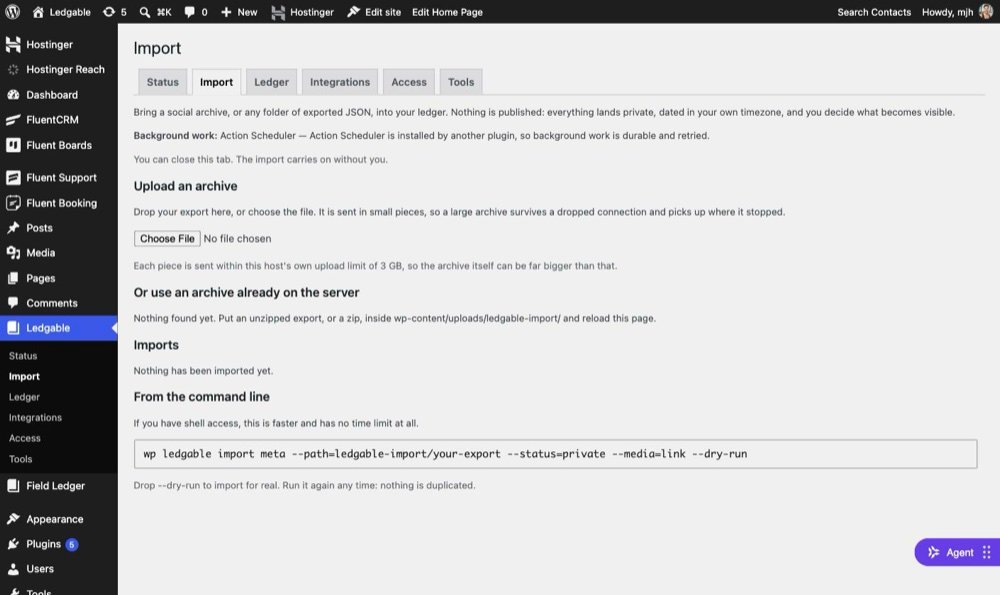

The friendlier version of this section, written for someone who has never installed a plugin, is Reclaim your years from Meta in the knowledge base.
Get your export from Meta
- In Facebook or Instagram, open Settings → Accounts Centre → Your information and permissions → Download your information.
- Request a download of your posts, photos and videos.
- Choose JSON, not HTML. This matters more than any other choice on this page.
- Pick the highest media quality you are willing to wait for, and request it. Meta emails you when it is ready, usually within a few hours.
The HTML export is a website, not data — captions and timestamps are baked into markup that varies by locale. Ledgable reads the JSON export. If you already downloaded HTML, request it again as JSON; it costs you the wait, not the archive.
Bring it in
Two doors into the same pipeline. A job you start in the browser can be finished on the command line, and the other way round.
From the admin
Go to Ledgable → Import and upload the zip. It uploads in chunks, so a multi-gigabyte file is not one enormous request your host will refuse. Then start the job and watch it: items done, items failed, and what failed and why. You can close the tab — leaving it open just keeps the job moving faster.
From WP-CLI
Better for very large archives, because nothing can time out:
# Look before you leap — reads the archive, writes nothing
wp ledgable import meta --path=my-export --dry-run

# The real thing
wp ledgable import meta --path=my-export --media=attach

# Only a slice of years
wp ledgable import meta --path=my-export --from=2010-01-01 --to=2014-12-31

# Resume a job started in the browser
wp ledgable import run 4
Put the extracted folder, or the zip, in wp-content/uploads/ledgable-import/. With no --path, it takes the newest thing it finds there.
What to do about photos
Running it again is safe
Every entry gets a stable identity derived from the record itself, and the importer claims each one before it writes. Re-running the same archive updates what is there and creates nothing new. If an import stops halfway — a timeout, a deploy, you pressing Ctrl-C — start it again; it picks up where the cursor was committed, not where it started.
What it handles that you would otherwise have to fix by hand
- Mangled accents. Meta’s captions arrive double-encoded, so café becomes café. The importer repairs this exactly once — and is careful never to apply the fix twice, because a second pass would break it again.
- Posts with no date. Some exports ship grid photos and reels with no timestamp at all. The importer will not fall back to the file’s modification date: if you downloaded the export from cloud storage, every one of those files claims the day you downloaded it, and your whole archive would pile onto a single afternoon. It dates them from the export’s own folder structure instead.
- Facebook’s narration. Records carry a title like “Michael shared a link” — written by Facebook, not by you. It is kept for the record and never used as an entry title.
- The same video twice. Videos appear both in the main feed and in the videos file. They collapse into one entry.
Afterwards
wp ledgable threads    # group entries into subject threads
wp ledgable index      # rebuild the day and year lookups
Threads are additive: running it again adds terms and never removes ones you curated by hand.
Connecting a device
Skip this section entirely if you do not have a handwriting app pointed at your site.
Pairing
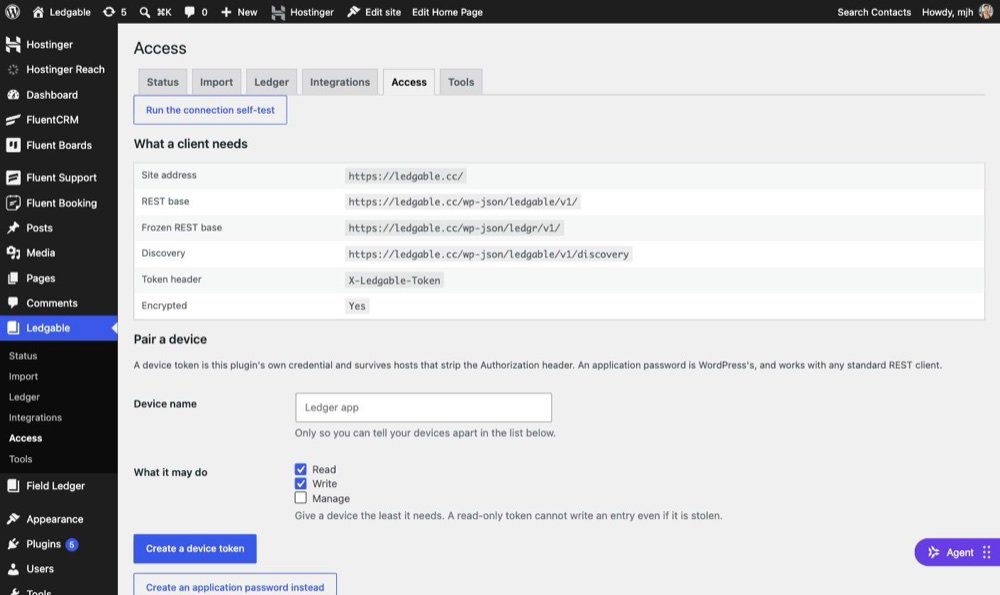
Under Ledgable → Access, mint a device token. It is shown once — the site stores only a hash of it, so it cannot be shown again. Copy it into the app then; if you lose it, revoke it and mint another.
The device sends it as a header on every request:
X-Ledgable-Token: <the token>Who is allowed to do what
Administrators get all three on activation. Grant them to other roles under Access. Every write route checks a capability — a token is an identity, not a permission.
Checking it from the outside
One endpoint tells you the whole state of the install: version, which modules are live, which are dark and what they are missing, the routes that exist, and the upload limits in force.
curl -H "X-Ledgable-Token: <token>" \
  https://example.com/wp-json/ledgable/v1/discovery
Privacy controls
One setting decides how far anything travels, and every part of the plugin asks it. Feeds, syndication and directory listings cannot disagree about what is private, because none of them decides.
Four levels
Five ways to set it
They are not alternatives — all five apply at once, and the most restrictive one wins:
- Quiet mode. One switch that pins the entire site shut. For a day when you want to write without anything leaving the building.
- Publication status. A draft or password-protected entry is private no matter what else says. Status is the floor.
- Per entry. A deliberate choice on one thing.
- By thread, kind, or date. Keep a whole thread home (family never travels). Keep a whole kind home (notes stay, day pages go). Keep everything before a date home (the years you would rather not republish).
- The site ceiling. A cap nothing may exceed — so “nothing on this site is ever more than unlisted” is one setting rather than a promise you keep by hand.
Marking one entry public does not pull it out of a thread you keep private. Widening one axis cannot quietly defeat a narrowing on another. If you want that entry out, take it out of the thread or change the thread’s rule — an explicit act, in the place the rule lives.
Note also that followers and strangers are different appetites. Syndicating a copy to a platform requires public, not followers — putting a copy where strangers see it is a wider act than letting people who chose to follow you read it, so it takes a wider setting.
The open network
Off until you turn it on. It is the only part of Ledgable whose job is to talk to other machines, so it is the only part that asks first.

Four separate things, switchable separately, in the order they matter:
1. Publish a feed
Your ledger appears at /ledger/feed.json and /ledger/feed.xml, and every page advertises them. This is how somebody follows your writing without an account, an app, or anyone’s permission — including ours. Only published entries appear; private ones never do.
2. Exchange mentions
When you publish an entry linking to another site, Ledgable tells that site. When another site links to you, it tells yours, and the mention arrives in your correspondence inbox alongside everything else — held for moderation, because it is a stranger’s text on your site.
Two ledgers that both do this have conversations across domains with nothing in the middle. That is the whole federation story, and it needs no protocol stack.
3. Follow other ledgers
Add somebody’s URL under Ledgable → Integrations — the site, not the feed; it will find the feed. Their recent entries appear in a river, in time order.
Nothing ranks, scores, promotes or withholds anything. It contains exactly the feeds you added, in the order things happened. That is the point of reading this way.
4. Post a copy to Bluesky
Optional, last, and framed as what it is: a copy, somewhere else, pointing home. Connect an account with a Bluesky app password — never your account password; app passwords are revocable one at a time from Bluesky’s settings.
Syndication is per entry. There is no “syndicate everything” button, because there is no version of that request that is a good idea.
5. Be found — and be able to leave
A directory is a list of ledgers people can browse. In Ledgable a directory is just another site running this plugin with the switch on — not a service, not an account system, not somewhere you register. A shala, a reading group, a family or a town can each run one.
Joining works in an unusual order, and the order is the whole point:
- You add the directory to your own profile at
/ledger/profile.json. That declaration is the membership, and it lives on your domain where nobody else can change it. - Your site knocks on the directory’s door. The knock claims nothing — the directory goes and reads your profile, and lists you only because your site names it.
Leaving is one step: remove it from your profile. The listing drops on the directory’s next check, whether or not its owner cooperates — a directory that kept you would be publishing a claim its own verification step contradicts.
A listing holds only what your profile published: a name, a sentence, your ledger URL, your feed, a few topics. No email, no account, no metrics. And your profile answers 404 until you switch listing on, so a ledger that has not opted in describes itself to nobody.
This is the guarantee the whole module is built around. The disaster it prevents is specific: you import fifteen years of posts, connect an account, and your followers receive eleven thousand notifications.
So every entry that exists when you switch syndication on is held, and so is every entry an import creates — recorded on the entry itself, surviving a re-enable or a settings reset. Releasing one is a deliberate act. Nothing goes out because you flipped a switch.
It has to be — an endpoint that demanded a password could never receive a mention. It accepts two URLs and nothing else: it stores no text a sender supplies, fetches the source itself to check the link is real, refuses addresses on private networks, caps what it will read, and files the result for you to approve. It is the only public route in the plugin.
Integrations
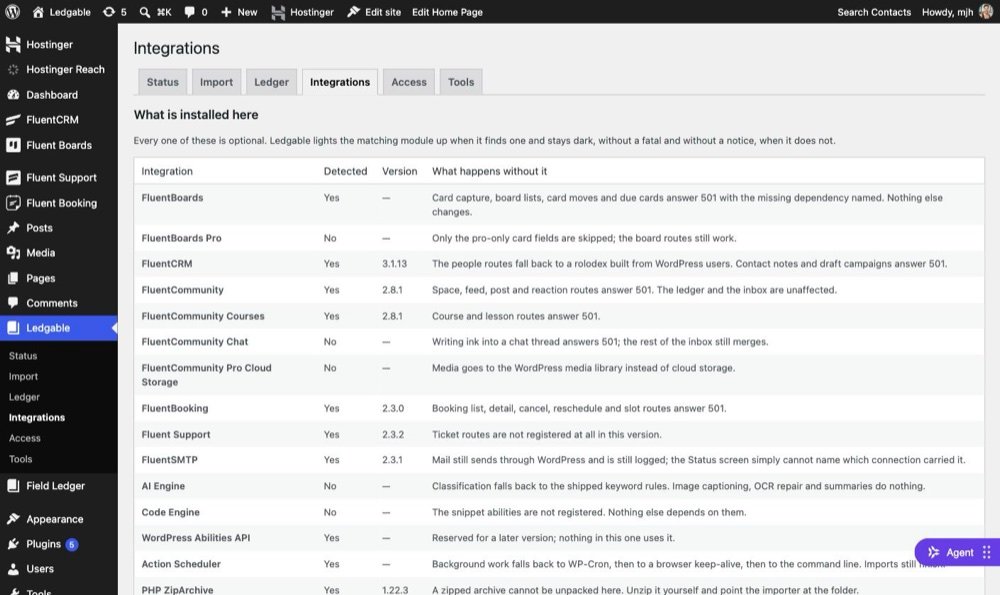
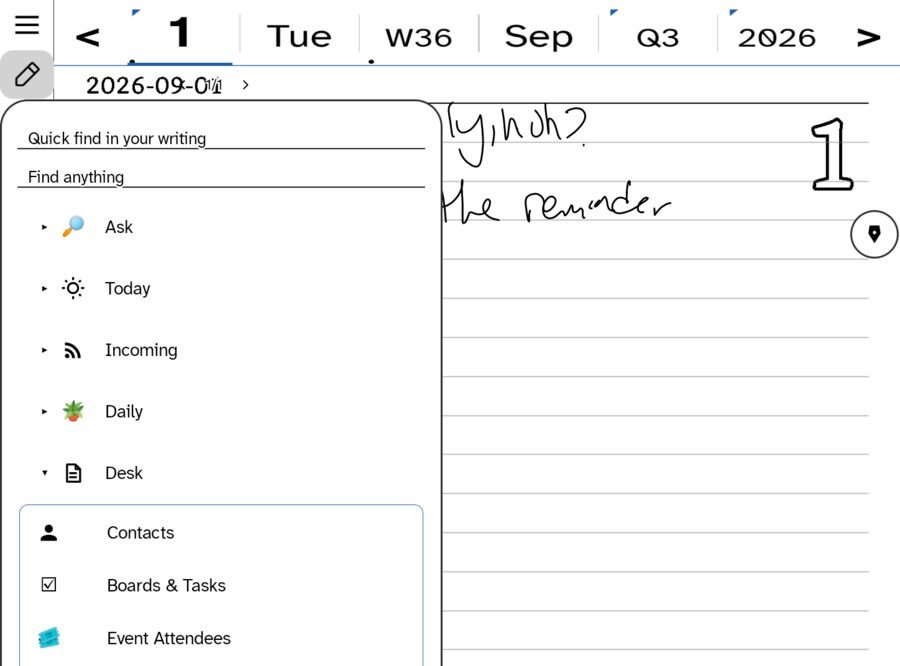
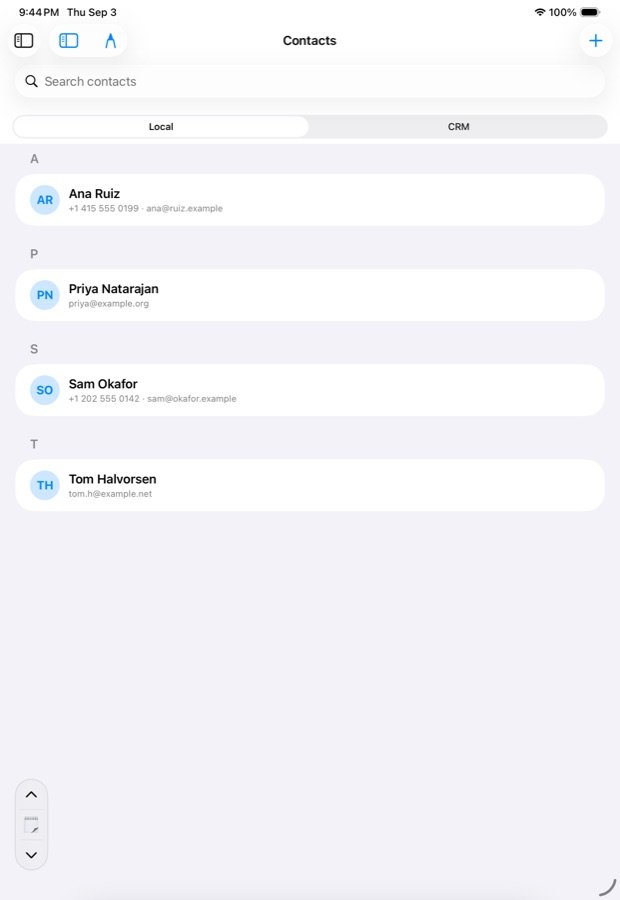
Each row is a module. Install the plugin in the second column and the module lights up; leave it out and the module stays dark. Nothing in the first two rows needs anything at all.
| Module | Needs | What it adds |
|---|---|---|
| Ledger, Garden, Capture | — | Entries, the browsable ledger, and device ink |
| Import | — | The archive importer |
| Correspondence | — | A merged inbox; works on comments out of the box |
| — | One outbound path with a real send log; uses FluentSMTP when present | |
| Boards | FluentBoards | Handwritten cards, board views, moving cards from a device |
| People | FluentCRM | A rolodex, and filing notes against a contact. Falls back to WordPress users |
| Community | FluentCommunity | Spaces, posts, and courses |
| Scheduling | FluentBooking | The day’s bookings, and cancelling or moving them |
| Help desk | Fluent Support | Open a ticket from something you wrote, read the queue, reply |
| Intelligence | AI Engine (optional) | Automatic tagging — see below |
| Open network | — | Feeds, mentions, following, directories, optional Bluesky copies |
| Extend | Code Engine | Call the plugin’s services from your own snippets |
A dark module does not disappear silently. Its routes answer 501 with a message naming what is missing, so a device gets a diagnosis rather than a mystery 404, and Ledgable → Integrations lists every one with its status.
Where media is stored
Four choices, set under Ledgable → Ledger. The default needs no configuration at all.
Setting up Cloudflare R2
| Field | Value |
|---|---|
| Endpoint | https://<account-id>.r2.cloudflarestorage.com |
| Bucket | Your bucket name |
| Region | auto — R2 wants exactly this |
| Path-style addressing | On, for R2 and MinIO. Off for Amazon S3 |
| Send ACL header | Off. R2 rejects it. Only older S3 buckets need it |
| Public base | The domain that serves the bucket — an r2.dev subdomain, a custom domain, or a CDN in front |
The access key and secret are stored apart from the rest of the settings, are never loaded on a normal page request, never appear in the API, and are never shown again after you save them. They are not written to any log, including when an upload fails.
Uploads happen in a single request, so one file is capped at 128 MB — past that the write is refused with a clear reason rather than half-written, and falls back to your media library. And Ledgable never makes a bucket public: until you set a public base, stored files have no readable URL.
Automatic tagging
Optional, and the parts that cost money are off until you switch them on.
Ledgable groups entries into threads by subject. Out of the box it does this with keyword rules — no network, no cost, no setup. If you have AI Engine installed, it can use that instead and do rather better, along with pulling out people, places and moods, tidying handwriting transcription, and repairing captions on an import.
Everything routes through AI Engine, which means your model choice, your account, and your spending limits. Ledgable never holds an API key and never calls a model vendor directly.
- Text tagging is on by default — with AI Engine when present, keyword rules when not.
- Anything touching an image or an audio file is off until you enable it, because those cost real money per item and an archive has a lot of items.
- Tagging always runs in the background. A visitor never waits on a model, and if a model call fails the keyword rules answer instead — quietly, and without a broken page.
The vocabulary of subjects is yours to edit, one per line, under Ledgable → Ledger.
When something breaks
Start here. If none of it fits, wp ledgable doctor reports the environment, the tables, the modules, and what it thinks is wrong.
My day pages return 404
Visit Settings → Permalinks and press Save. No changes needed — the visit itself makes WordPress re-read the URL rules. Do this after changing your ledger slug too.
The import starts and then just sits there
The job runs on background tasks, and some hosts disable WordPress’s scheduler. Keep the Import screen open — it nudges the job along from the browser. If it is still stuck, run it from the command line, where nothing can time out:
wp ledgable import run <job>Everything landed on the same day
This is the signature of an HTML export rather than a JSON one. Request the export again as JSON. Ledgable never uses a file’s modification date for dating, precisely because that failure produces this result.
The text is full of é and ’
Meta double-encodes captions and Ledgable repairs it on import. Seeing it means the text was repaired twice — once by another tool before it reached here. Re-import from the original export rather than from a processed copy.
My photos are missing from imported entries
With --media=link, entries point at the export folder — if you deleted or moved it, the links break. Re-import with --media=attach or --media=offload to make the archive self-contained. Re-importing creates no duplicates.
My device gets 401 or 403
401 means the token was not recognised — check it is sent as the X-Ledgable-Token header, and that it has not been revoked. 403 means the token is fine but the account behind it lacks the capability for that route; grant ledgable_write under Access.
A route returns 501
That is a module whose plugin is not installed or not active. The response says which. Check Ledgable → Integrations — it lists every module, whether it is satisfied, and what it is waiting for.
Uploads keep landing in the media library after I configured a bucket
Deliberate: a misconfigured bucket must never lose an upload, so failures fall back rather than erroring. Ledgable → Status names the driver in use and why it was chosen, and the bucket test there distinguishes wrong keys from wrong bucket from unreachable host.
Reference
Command line
| Command | Does |
|---|---|
wp ledgable import |
Scan, run, and resume archive imports |
wp ledgable index |
Rebuild the day and year lookups |
wp ledgable threads |
Group entries into subject threads |
wp ledgable migrate |
Move content from an earlier setup |
wp ledgable doctor |
Report environment, tables, modules, and likely problems |
Admin screens
Removing it
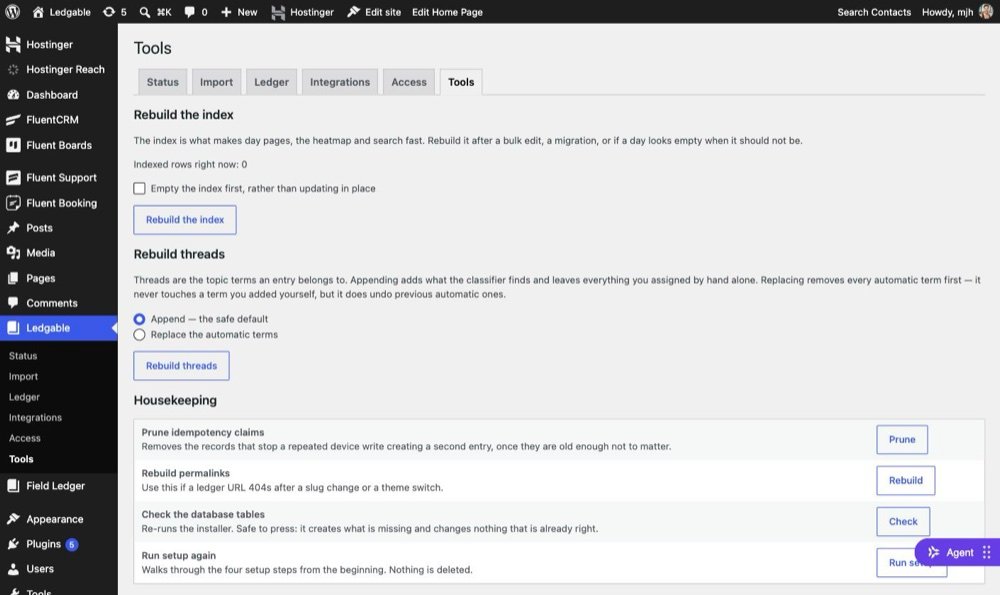
Deactivating stops the schedules and pauses any running import; nothing is deleted. Deleting the plugin removes its tables, options and capabilities — and leaves your entries alone unless you ticked the box under Tools that says to delete content too. That box is off by default and means what it says.
Multipart upload for very large single files, a member-facing dashboard, outbound webhooks, and semantic search. The seam for semantic search ships, but no provider does — so nothing goes out over the network on your behalf.
Ledgable 1.0.0 — handbook for new installs