Knowledge base › Getting started
Installing on iPhone, iPad and Apple Watch
App Store or TestFlight, and what each permission on first launch is for.
Install Ledgable from the App Store on iPhone or iPad; the Apple Watch app comes with it. If you were sent a TestFlight link for a test build, install TestFlight first and accept the invitation there.
The TestFlight beta, today
While the App Store listing is in review, the same build installs through TestFlight. On the iPhone or iPad, open testflight.apple.com/join/JnwHx95d, install Apple’s TestFlight app if it asks, and accept. Updates arrive through TestFlight the same way. Nothing about the app is different from the store build; TestFlight simply asks you to send feedback with a screenshot if something goes wrong, and that feedback reaches the maker.
Installing
- Search the App Store for Ledgable and install it. The same app runs on iPhone and iPad.
- Open it. You land on today’s page.
- If you have an Apple Watch, the watch app installs alongside the phone app. Open the Watch app on your phone if it does not appear on the wrist within a minute or two.
TestFlight builds update through TestFlight, not the App Store. Both install the same app over the top of itself; your pages stay where they are.
What the first launch asks for, and why
Ledgable asks for each permission at the moment you first use the thing that needs it, not all at once. You can say no to any of them and the rest of the app carries on.
- Calendar — so your calendar events appear on the day’s Schedules column. Say no and the schedule shows only what you write on it.
- Reminders — so a handwritten task can become a Reminder. Tasks still work inside the app without it.
- Contacts — only when you choose to fill your rolodex from the device address book. Nothing is read until you ask.
- Photos — two separate asks. Reading, so you can place a photo onto a page. Adding, so an exported page image or a gram can be saved to your library.
- Camera — for videograms, short clips recorded onto the day.
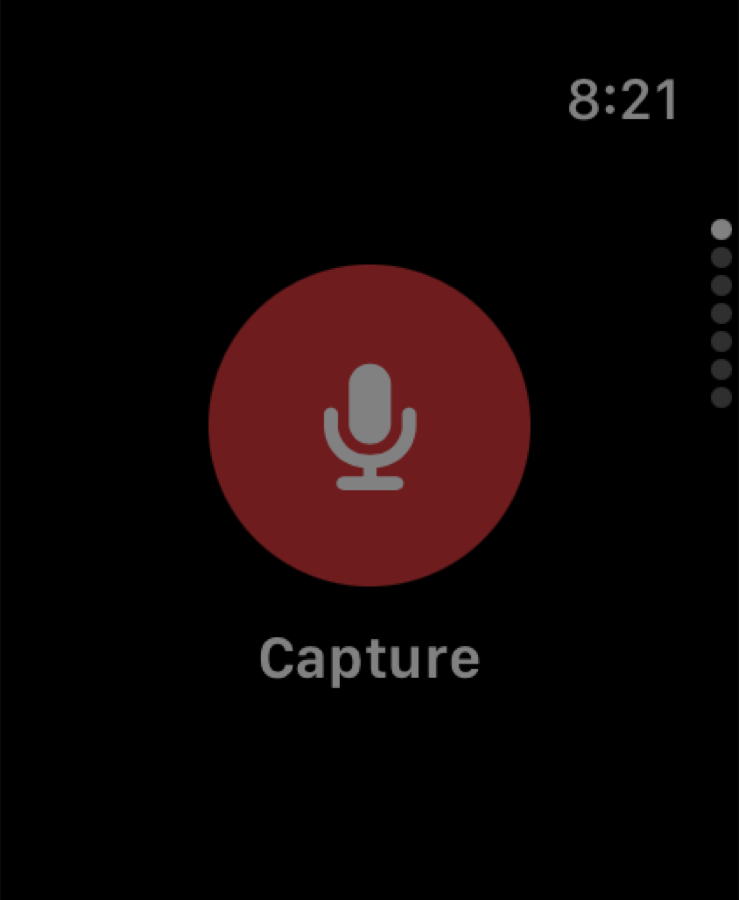
- Microphone — for voice annotations and audiograms. On the Watch, for the one-button capture.
- Speech recognition — only if you dictate a question into Ask.
- Notifications — asked only once a feed server is configured, because the only alert the app sends is “new articles arrived”. With no feed account there is nothing to notify about, so you are never asked.
Ledgable does not put an unread count on its icon. It records what you do; it does not nag.
Background fetching
Mail and feeds are fetched on a cycle so they can be read offline. The default is 30 minutes, and Off is a real choice — the surfaces still fetch when you open them. On iOS the interval means “no sooner than”; the system chooses the actual moment based on how you use the phone. That is a platform rule, not a setting you can tighten.
Your files
The app’s Documents folder is yours. It is visible in the Files app and over a USB cable, so you can see your day pages, books and captures without any export step.
After installing
Go to Settings and set up sync first if you use more than one device — see How sync works. Then add a feed account, a mail account, or a site, in whatever order suits you. Nothing is required.
Related
In this section: Getting started
- Start here
- Installing on iPhone, iPad and Apple Watch
- Installing on Boox, Bigme and other e-ink tablets
- Your first day page
- Join the community
Ledgable — cozy and transgressive