Knowledge base › Getting started
Your first day page
Write in each zone, tick a task, flip the page, move through time.
Pick up the pen and write on today. That is the whole first lesson. The page already knows the date, the weather and your calendar; you add the ink.
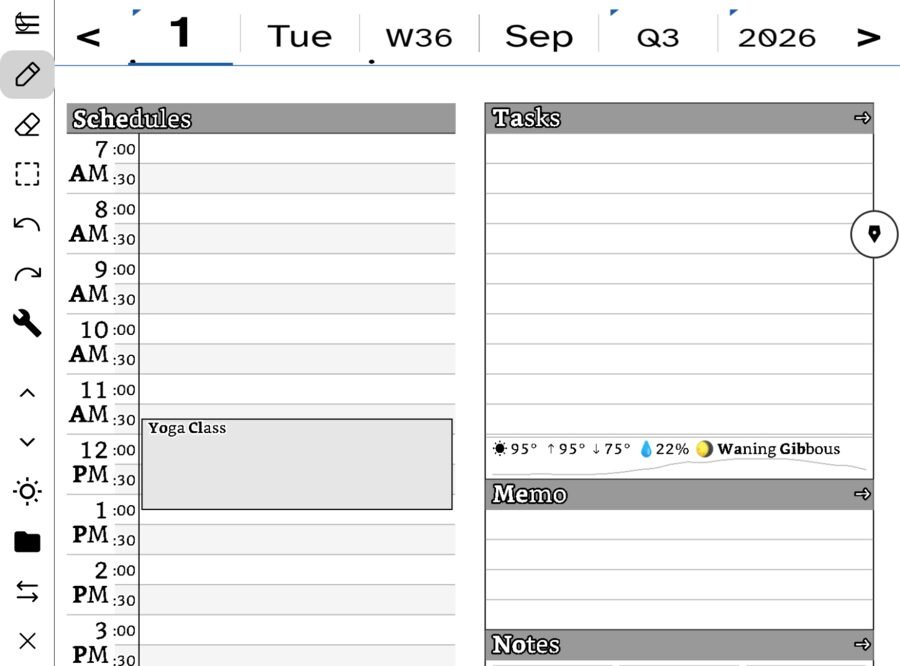
Write something in each zone
- Schedules. Write an appointment next to its hour. If your calendar is connected, events you already have are drawn here too.
- Tasks. Write a to-do on a line. There is a checkbox beside it; tick it when it is done and the tick stays.
- Memo. A loose thought that belongs to today and not to any task.
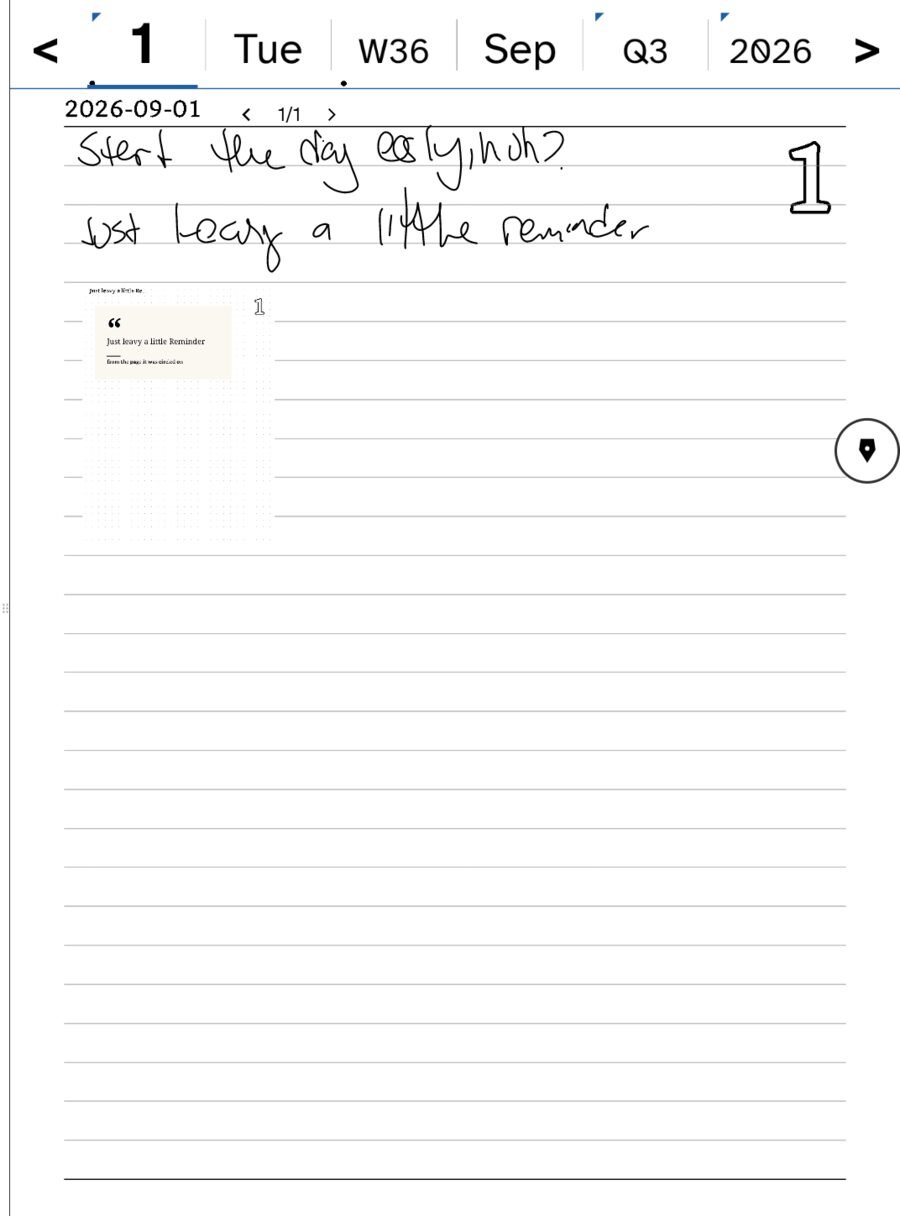
- Notes. The longer writing area. Tap Notes — where you left off to open a full note page for the day, with Previous and Next across the top for its pages.
On iPad there is also a Doodle panel for drawing. The e-ink build folds that into Notes.
The tools
On e-ink, a narrow rail runs down the left edge: pen, eraser, lasso, undo and redo, section up and down, Today, and Tuck away, which hides the rail so the page runs edge to edge. On iPad the tool palette is Apple’s, along the bottom: pens, highlighter, ruler and the color wells, with pressure and tilt from the Apple Pencil.
The eraser removes strokes, not pixels — a whole letter goes at once. The lasso circles ink to move it, or to turn it into something else: a task, a card, a note, text.
Turn a task into a real task
Write a task, then let the app read it. Circle it with the lasso and choose Task, or on iPad let handwritten Tasks become Reminders. Either way the tick on the page and the task in the list are the same fact.
Flip the page
Every day has a back. Other side on the rail flips it, so a day that overflows has room without becoming a second day.
Move through time
The row across the top — day, week, month, quarter, year — is the almanac strip. Tap a level to zoom out; the arrows step back and forward. The week shows what you actually wrote each day. Today brings you home from anywhere. See The almanac strip.
Save nothing
There is no save button. Strokes are written to the day’s file as you make them. If sync is on, the file goes to your server on its own.
Then
Tomorrow, the app opens on tomorrow. Yesterday is one arrow away and stays exactly as you left it. When you want a page that is not tied to a day, open Notes — see The Notebook.
Related
In this section: Getting started
Ledgable — cozy and transgressive